
Flet是基于Python实现的Flutter图形界面GUI。除了使用Python,具备美观、简洁、易用,还有Flutter本身的跨平台(安卓、iOS、Win、Mac、Web)、高性能、有后盾的特点。下面是0.18版官方TODO APP教程,为了准确,保持了中英双语,请对照食用。
Create To-Do app in Python with Flet
使用Flet在Python中创建待办事项应用程序
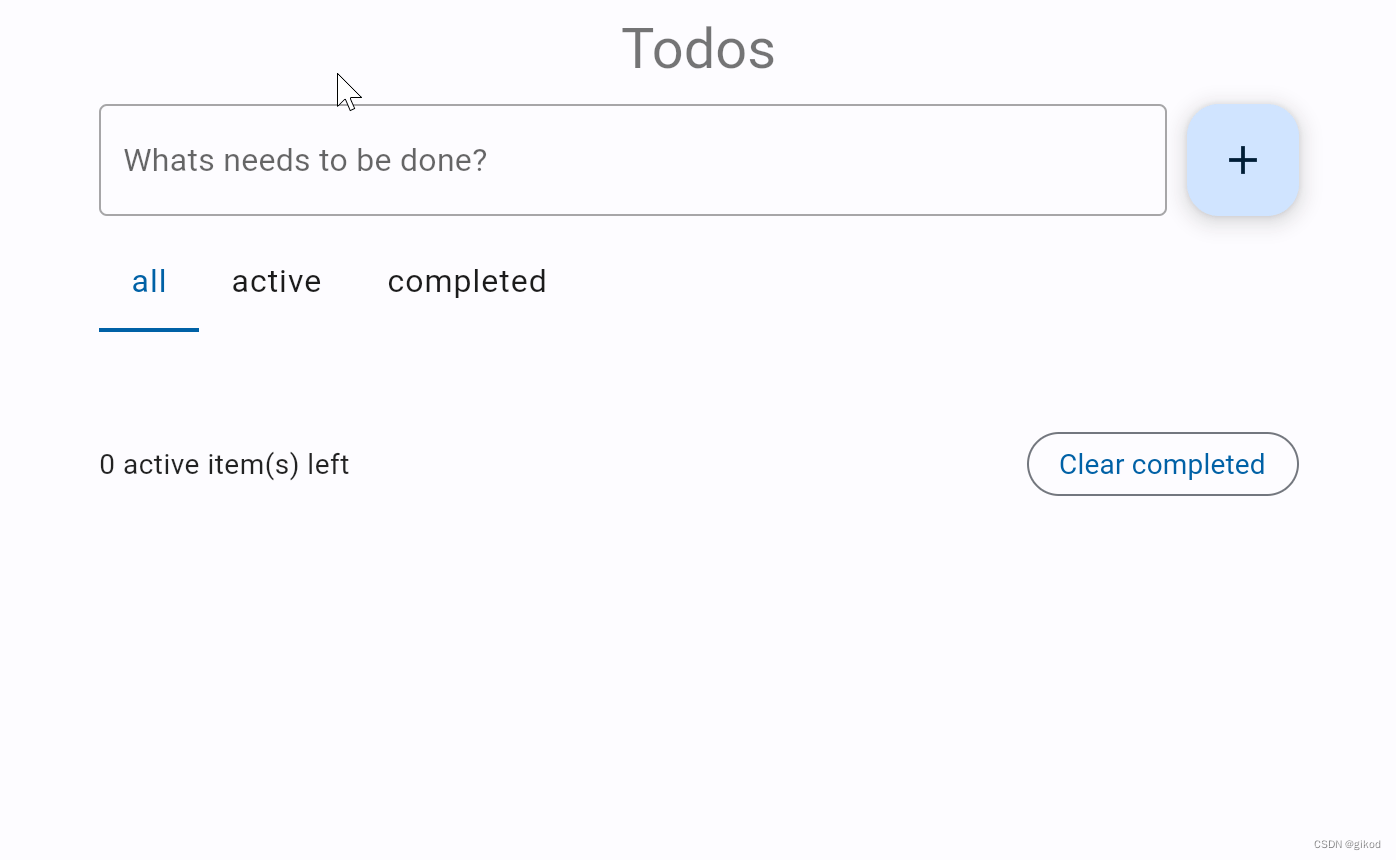
In this tutorial we will show you, step-by-step, how to create a ToDo web app in Python using Flet framework and then share it on the internet. The app is a single-file console program of just 180 lines (formatted!) of Python code, yet it is a multi-session, modern single-page application with rich, responsive UI:
在本教程中,我们将逐步向您展示如何使用Flet框架在Python中创建ToDo web应用程序,然后在互联网上共享。该应用程序是一个只有180行(格式化!)Python代码的单文件控制台程序,但它是一个多会话、现代的单页应用程序,具有丰富、响应迅速的UI:
讯享网
Getting started with Flet Flet入门
Adding page controls and handling events 添加页面控件和处理事件
View, edit and delete list items 查看、编辑和删除列表项
Filtering list items 筛选列表项
Final touches 最后的润色
Deploying the app 部署应用程序
Getting started with Flet Flet入门
To write a Flet web app you don’t need to know HTML, CSS or JavaScript, but you do need a basic knowledge of Python and object-oriented programming.
要编写Flet web应用程序,您不需要了解HTML、CSS或JavaScript,但您确实需要Python和面向对象编程的基本知识。
pip install flet 讯享网
Create hello.py with the following contents:使用以下内容创建hello.py:
讯享网import flet as ft def main(page: ft.Page): page.add(ft.Text(value="Hello, world!")) ft.app(target=main)
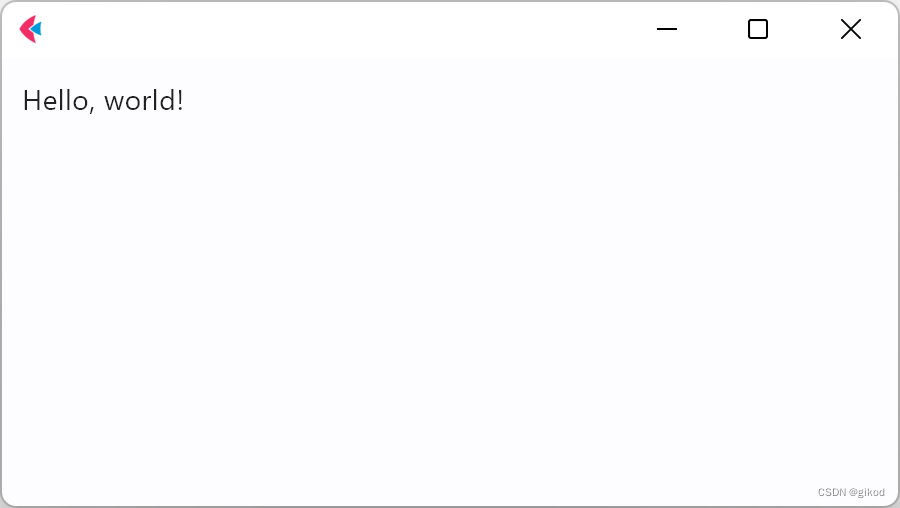
Run this app and you will see a new window with a greeting:
运行此应用程序,您将看到一个带有问候语的新窗口:
Adding page controls and handling events
添加页面控件和处理事件
Now we’re ready to create a multi-user ToDo app.
现在,我们准备创建一个多用户ToDo应用程序。
Create todo.py with the following contents:创建包含以下内容的todo.py:
import flet as ft def main(page: ft.Page): def add_clicked(e): page.add(ft.Checkbox(label=new_task.value)) new_task.value = "" page.update() new_task = ft.TextField(hint_text="Whats needs to be done?") page.add(new_task, ft.FloatingActionButton(icon=ft.icons.ADD, on_click=add_clicked)) ft.app(target=main) Run the app and you should see a page like this:
运行应用程序,您应该会看到这样的页面:

Page layout页面布局
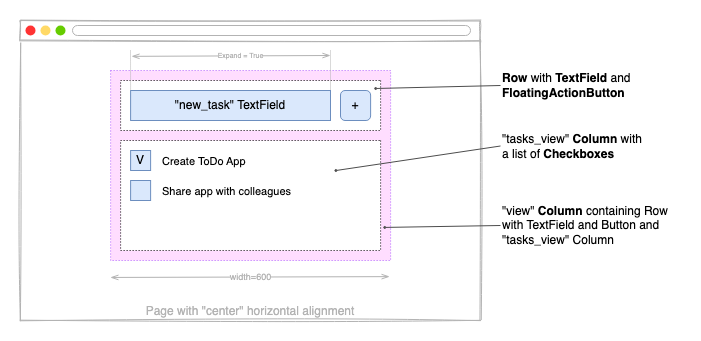
Now let’s make the app look nice! We want the entire app to be at the top center of the page, taking up 600 px width. The TextField and the “+” button should be aligned horizontally, and take up full app width:
现在让我们让应用程序看起来很好看!我们希望整个应用程序位于页面的顶部中心,占据600像素的宽度。TextField和“+”按钮应水平对齐,并占据整个应用程序宽度:
Replace todo.py contents with the following:将todo.py内容替换为以下内容:
讯享网import flet as ft def main(page: ft.Page): def add_clicked(e): tasks_view.controls.append(ft.Checkbox(label=new_task.value)) new_task.value = "" view.update() new_task = ft.TextField(hint_text="Whats needs to be done?", expand=True) tasks_view = ft.Column() view=ft.Column( width=600, controls=[ ft.Row( controls=[ new_task, ft.FloatingActionButton(icon=ft.icons.ADD, on_click=add_clicked), ], ), tasks_view, ], ) page.horizontal_alignment = ft.CrossAxisAlignment.CENTER page.add(view) ft.app(target=main)
Run the app and you should see a page like this:
运行应用程序,您应该会看到这样的页面:

Reusable UI components可重用的UI组件
While we could continue writing our app in the main function, the best practice would be to create a reusable UI component. Imagine you are working on an app header, a side menu, or UI that will be a part of a larger project. Even if you can’t think of such uses right now, we still recommend creating all your web apps with composability and reusability in mind.
虽然我们可以继续在主功能中编写应用程序,但**实践是创建一个可重用的UI组件。想象一下,你正在处理一个应用程序标题、侧菜单或UI,这将是一个更大项目的一部分。即使您现在还想不出这样的用途,我们仍然建议您在创建所有web应用程序时考虑到可组合性和可重用性。
import flet as ft class TodoApp(ft.UserControl): def build(self): self.new_task = ft.TextField(hint_text="Whats needs to be done?", expand=True) self.tasks = ft.Column() # application's root control (i.e. "view") containing all other controls return ft.Column( width=600, controls=[ ft.Row( controls=[ self.new_task, ft.FloatingActionButton(icon=ft.icons.ADD, on_click=self.add_clicked), ], ), self.tasks, ], ) def add_clicked(self, e): self.tasks.controls.append(ft.Checkbox(label=self.new_task.value)) self.new_task.value = "" self.update() def main(page: ft.Page): page.title = "ToDo App" page.horizontal_alignment = ft.CrossAxisAlignment.CENTER page.update() # create application instance todo = TodoApp() # add application's root control to the page page.add(todo) ft.app(target=main) 讯享网# create application instance app1 = TodoApp() app2 = TodoApp() # add application's root control to the page page.add(app1, app2)
View, edit and delete list items
查看、编辑和删除列表项
In the previous step, we created a basic ToDo app with task items shown as checkboxes. Let’s improve the app by adding “Edit” and “Delete” buttons next to a task name. The “Edit” button will switch a task item to edit mode.
在上一步中,我们创建了一个基本的ToDo应用程序,其中任务项显示为复选框。让我们通过在任务名称旁边添加“编辑”和“删除”按钮来改进应用程序。“编辑”按钮将任务项目切换到编辑模式。


class Task(ft.UserControl): def __init__(self, task_name): super().__init__() self.task_name = task_name def build(self): self.display_task = ft.Checkbox(value=False, label=self.task_name) self.edit_name = ft.TextField(expand=1) self.display_view = ft.Row( alignment=ft.MainAxisAlignment.SPACE_BETWEEN, vertical_alignment=ft.CrossAxisAlignment.CENTER, controls=[ self.display_task, ft.Row( spacing=0, controls=[ ft.IconButton( icon=ft.icons.CREATE_OUTLINED, tooltip="Edit To-Do", on_click=self.edit_clicked, ), ft.IconButton( ft.icons.DELETE_OUTLINE, tooltip="Delete To-Do", on_click=self.delete_clicked, ), ], ), ], ) self.edit_view = ft.Row( visible=False, alignment=ft.MainAxisAlignment.SPACE_BETWEEN, vertical_alignment=ft.CrossAxisAlignment.CENTER, controls=[ self.edit_name, ft.IconButton( icon=ft.icons.DONE_OUTLINE_OUTLINED, icon_color=ft.colors.GREEN, tooltip="Update To-Do", on_click=self.save_clicked, ), ], ) return ft.Column(controls=[self.display_view, self.edit_view]) def edit_clicked(self, e): self.edit_name.value = self.display_task.label self.display_view.visible = False self.edit_view.visible = True self.update() def save_clicked(self, e): self.display_task.label = self.edit_name.value self.display_view.visible = True self.edit_view.visible = False self.update() 讯享网class TodoApp(ft.UserControl): def build(self): self.new_task = ft.TextField(hint_text="Whats needs to be done?", expand=True) self.tasks = ft.Column() # ... def add_clicked(self, e): task = Task(self.new_task.value, self.task_delete) self.tasks.controls.append(task) self.new_task.value = "" self.update()
class TodoApp(ft.UserControl): # ... def task_delete(self, task): self.tasks.controls.remove(task) self.update() 讯享网class Task(ft.UserControl): def __init__(self, task_name, task_delete): super().__init__() self.task_name = task_name self.task_delete = task_delete # ... def delete_clicked(self, e): self.task_delete(self)
Run the app and try to edit and delete tasks:
运行应用程序并尝试编辑和删除任务:

Filtering list items筛选列表项
We already have a functional ToDo app where we can create, edit, and delete tasks. To be even more productive, we want to be able to filter tasks by their status.
我们已经有了一个功能强大的ToDo应用程序,可以在其中创建、编辑和删除任务。为了提高工作效率,我们希望能够根据任务的状态筛选任务。
Tabs control is used to display filter:选项卡控件用于显示筛选器:
# ... class TodoApp(ft.UserControl): def __init__(self): self.tasks = [] self.new_task = ft.TextField(hint_text="Whats needs to be done?", expand=True) self.tasks = ft.Column() self.filter = ft.Tabs( selected_index=0, on_change=self.tabs_changed, tabs=[ft.Tab(text="all"), ft.Tab(text="active"), ft.Tab(text="completed")], ) self.view = ft.Column( width=600, controls=[ ft.Row( controls=[ self.new_task, ft.FloatingActionButton(icon=ft.icons.ADD, on_click=self.add_clicked), ], ), ft.Column( spacing=25, controls=[ self.filter, self.tasks, ], ), ], ) 讯享网class TodoApp(ft.UserControl): # ... def update(self): status = self.filter.tabs[self.filter.selected_index].text for task in self.tasks.controls: task.visible = ( status == "all" or (status == "active" and task.completed == False) or (status == "completed" and task.completed) ) super().update()
class TodoApp(ft.UserControl): # ... def tabs_changed(self, e): self.update() class Task(ft.UserControl): def __init__(self, task_name, task_status_change, task_delete): super().__init__() self.completed = False self.task_name = task_name self.task_status_change = task_status_change self.task_delete = task_delete def build(self): self.display_task = ft.Checkbox( value=False, label=self.task_name, on_change=self.status_changed ) # ... def status_changed(self, e): self.completed = self.display_task.value self.task_status_change(self) Run the app and try filtering tasks by clicking on the tabs:
运行应用程序并尝试通过单击选项卡筛选任务:

Final touches最后的润色
Our Todo app is almost complete now. As a final touch, we will add a footer (Column control) displaying the number of incomplete tasks (Text control) and a “Clear completed” button.
我们的Todo应用程序现在几乎完成了。最后,我们将添加一个页脚(列控件),显示未完成任务的数量(文本控件)和一个“清除已完成”按钮。
讯享网class TodoApp(): def __init__(self): # ... self.items_left = ft.Text("0 items left") self.view = ft.Column( width=600, controls=[ ft.Row([ ft.Text(value="Todos", style="headlineMedium")], alignment=ft.MainAxisAlignment.CENTER), ft.Row( controls=[ self.new_task, ft.FloatingActionButton(icon=ft.icons.ADD, on_click=self.add_clicked), ], ), ft.Column( spacing=25, controls=[ self.filter, self.tasks, ft.Row( alignment=ft.MainAxisAlignment.SPACE_BETWEEN, vertical_alignment=ft.CrossAxisAlignment.CENTER, controls=[ self.items_left, ft.OutlinedButton( text="Clear completed", on_click=self.clear_clicked ), ], ), ], ), ], ) # ... def clear_clicked(self, e): for task in self.tasks.controls[:]: if task.completed: self.task_delete(task) def update(self): status = self.filter.tabs[self.filter.selected_index].text count = 0 for task in self.tasks.controls: task.visible = ( status == "all" or (status == "active" and task.completed == False) or (status == "completed" and task.completed) ) if not task.completed: count += 1 self.items_left.value = f"{
     count} active item(s) left" super().update()
Run the app:运行应用程序:

Deploying the app部署应用程序
Congratulations! You have created your first Python app with Flet, and it looks awesome!
祝贺你已经用Flet创建了你的第一个Python应用程序,它看起来很棒!
Create a simple Flet app;创建一个简单的Flet应用程序;
Work with Reusable UI components;使用可重用的UI组件;
Design UI layout using Column and Row controls;使用列和行控件设计UI布局;
Work with lists: view, edit and delete items, filtering;
使用列表:查看、编辑和删除项目,过滤;
Deploy your Flet app to the web;将Flet应用程序部署到网络;
For further reading you can explore controls and examples repository.
为了进一步阅读,您可以浏览控件和示例存储库。
版权声明:本文内容由互联网用户自发贡献,该文观点仅代表作者本人。本站仅提供信息存储空间服务,不拥有所有权,不承担相关法律责任。如发现本站有涉嫌侵权/违法违规的内容,请联系我们,一经查实,本站将立刻删除。
如需转载请保留出处:https://51itzy.com/kjqy/16510.html