
1.一个简单的折线图
# 从matplotlib导入pyplot from matplotlib import pyplot as plt # squares是要绘制的数据 squares = [1, 4, 9, 16, 25] # 下面的函数plt.plot将数据绘制到二维坐标系下。 # 如果只提供一个维度的数据例如squares,会被认为是Y坐标。 # 默认的横坐标是 [ i for i in range(len(squares)) ] plt.plot(squares) # 显示绘制的曲线图 plt.show()讯享网
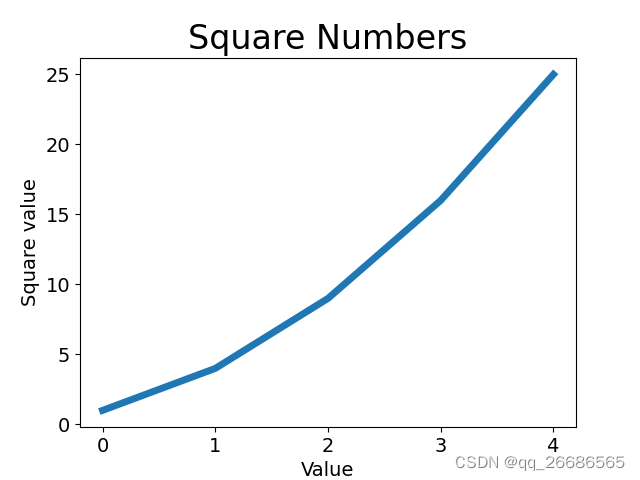
运行上面的脚本,会在一个窗口中看到下图

2.设置线的粗线,图的标题,X/Y轴标签, 坐标轴刻度大小
讯享网from matplotlib import pyplot as plt squares = [1, 4, 9, 16, 25] # 参数linewidth:设置线的粗细 plt.plot(squares, linewidth=5) # 折线图的标题 plt.title("Square Numbers", fontsize=24) # 折线图的横轴标签 plt.xlabel("Value", fontsize=14) # 折线图的纵轴标签 plt.ylabel("Square value", fontsize=14) # 刻度标记大小 plt.tick_params(axis="both", labelsize=14) plt.show()
运行结果

3.修改默认的横坐标数据
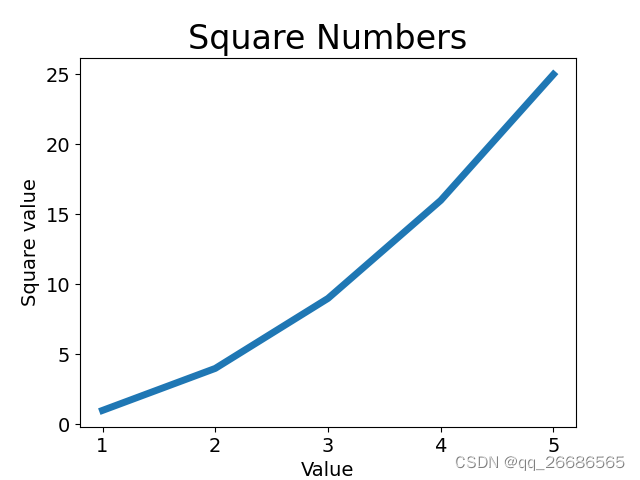
上面的折线图使用了默认的X坐标值,导致起始点对应的横坐标是0,纵坐标是1,不太合理(0的平方并不是1),接下来通过指定正确的横纵坐标值,来绘制正确的折线图。
from matplotlib import pyplot as plt input_values = [1, 2, 3, 4, 5] squares = [1, 4, 9, 16, 25] # 这里分别传入参数X轴 Y轴数据 plt.plot(input_values, squares, linewidth=5) plt.title("Square Numbers", fontsize=24) plt.xlabel("Value", fontsize=14) plt.ylabel("Square value", fontsize=14) plt.tick_params(axis="both", labelsize=14) plt.show()运行结果,折线的起点横坐标是从1开始的
4.填充两条折线图之间的部分
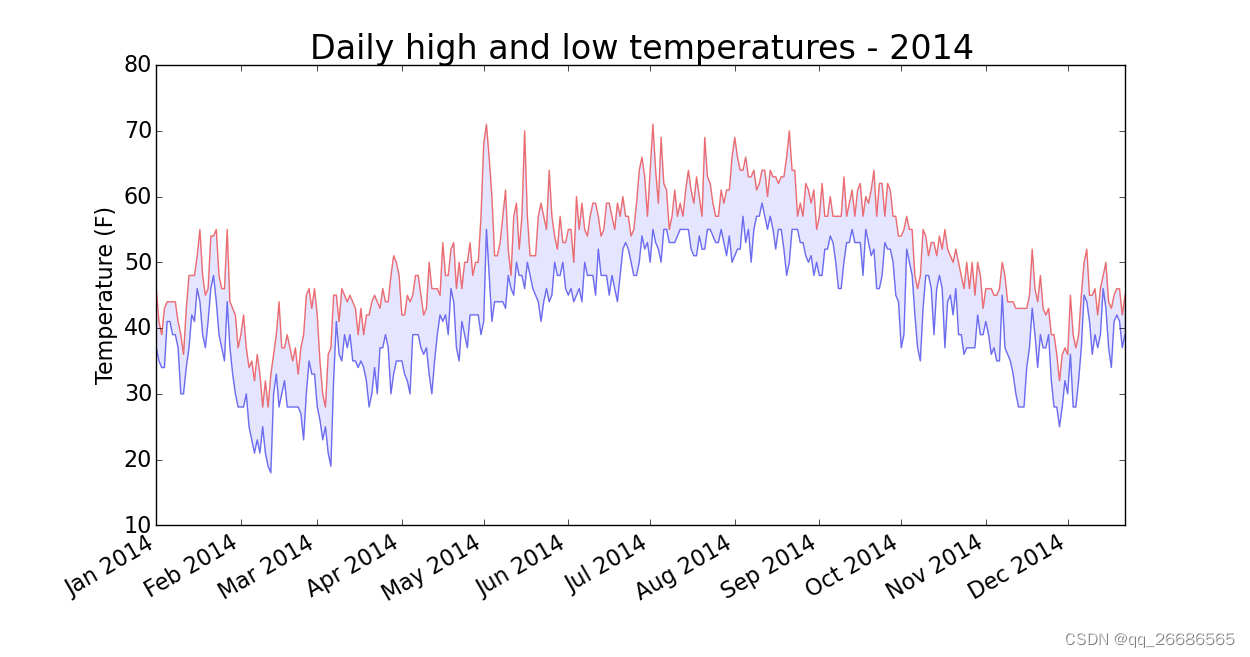
讯享网plt.plot(dates, highs, c='red', alpha=0.5) plt.plot(dates, lows, c='blue', alpha=0.5) # dates代表X轴数值 highs, lows分别是两条折线的Y轴数值 plt.fill_between(dates, highs, lows, facecolor='blue', alpha=0.1)
版权声明:本文内容由互联网用户自发贡献,该文观点仅代表作者本人。本站仅提供信息存储空间服务,不拥有所有权,不承担相关法律责任。如发现本站有涉嫌侵权/违法违规的内容,请联系我们,一经查实,本站将立刻删除。
如需转载请保留出处:https://51itzy.com/kjqy/68433.html