
服务器:debian10 IP地址192.168.0.240
客户端:windows10 IP地址192.168.0.100
打印机:brother DCP-7080D
第一步:准备文件
到打印机官方网站下载Linux版本的Driver Intall Tool和windows10版本的<添加打印机向导驱动程序>,文件名分别为:
linux-brprinter-installer-2.2.2-1.gz
Y14B_C1-hostm-D2.EXE
网址:https://support.brother.com/g/b/producttop.aspx?c=cn&lang=zh&prod=dcp7080d_cn
第二步:安装 CUPS服务(通用Unix打印系统)
markul@server:sudo apt-get update markul@server:sudo apt-get install cups讯享网
第三步:安装打印机驱动
讯享网markul@server:sudo gunzip linux-brprinter-installer-2.2.2-1.gz markul@server:sudo bash linux-brprinter-installer-2.2.2-1 DCP-7080D You are going to install following packages. dcp7080dlpr-3.2.0-1.i386.deb dcp7080dcupswrapper-3.2.0-1.i386.deb brscan4-0.4.9-1.amd64.deb brscan-skey-0.3.1-1.amd64.deb OK? [y/N] ->y ........ Will you specify the Device URI? [Y/n] ->y 0: lpd 1: socket 2: https 3: ipps 4: cups-brf:/ 5: beh 6: serial:/dev/ttyS0?baud= 7: ipp 8: http 9: usb://Brother/DCP-7080D?serial=E80117B0N 10 (I): Specify IP address. 11 (A): Auto. (usb://Brother/DCP-7080D?serial=E80117B0N) select the number of destination Device URI. ->11 Test Print? [y/N] ->y #测试打印机 markul@server:sudo lp -P DCP7080D /usr/share/cups/data/testprint
第四步:修改cups配置(/etc/cups/cupsd.conf)
# Only listen for connections from the local machine. Listen *:631 Listen /run/cups/cups.sock # Show shared printers on the local network. Browsing On BrowseLocalProtocols dnssd # Default authentication type, when authentication is required... DefaultAuthType Basic # Web interface setting... WebInterface Yes # Restrict access to the server... <Location /> Order allow,deny Allow all </Location> # Restrict access to the admin pages... <Location /admin> Order allow,deny Allow all </Location> # Restrict access to configuration files... <Location /admin/conf> AuthType Default Require user @SYSTEM Order allow,deny Allow all </Location> # Restrict access to log files... <Location /admin/log> AuthType Default Require user @SYSTEM Order allow,deny </Location> 第五步:重启cups服务

讯享网markul@server:sudo service cupsd restart markul@server:sudo lpstat -a DCP7080D accepting requests since Sun 16 Aug 2020 03:42:22 AM EDT
第六步:测试cups WEB管理
客户端浏览器打开:https://192.168.0.240:631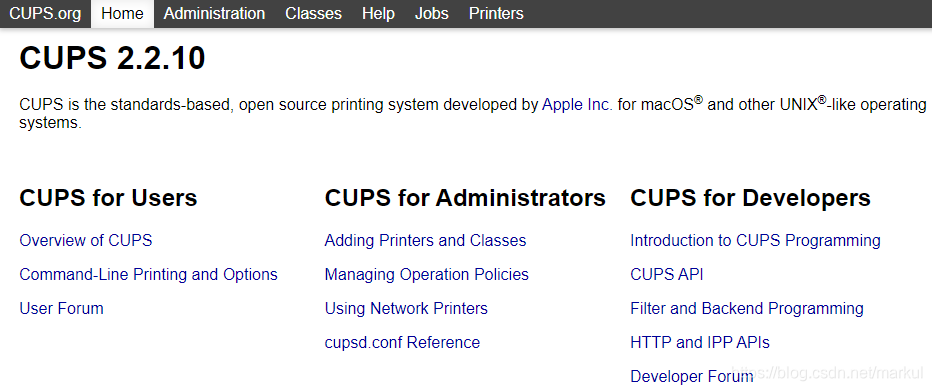
第七步:客户端安装WIN10版本驱动
运行Y14B_C1-hostm-D2.EXE,解压出驱动程序文件,注意路径。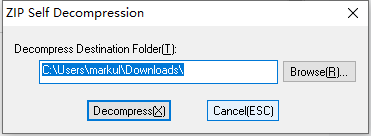
第八步:客户端连接打印机
浏览网络---->打开服务器---->右击dcp7080d-->连接(N)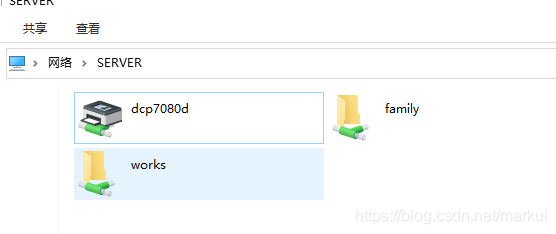
在弹出的对话框中点 "确定"
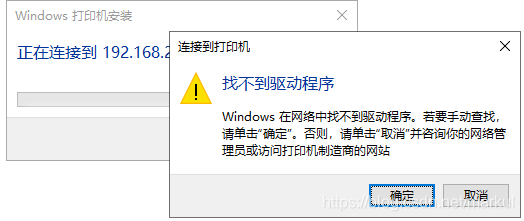
再点“从磁盘安装(H)...”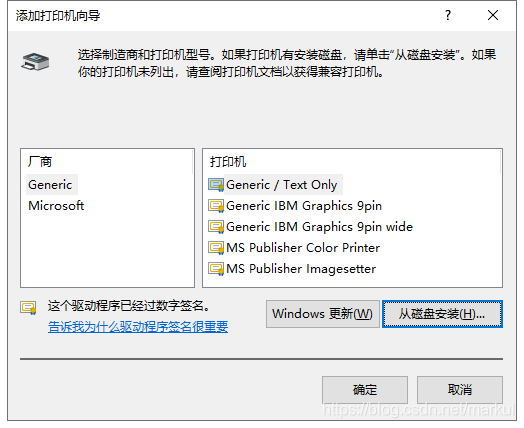
浏览第七步解压驱动包的路径,然后确定,在出现的列表中选择“Brother DCP-7080D Printer”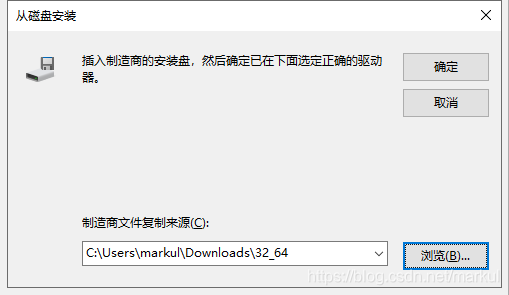

至此安装完成!
版权声明:本文内容由互联网用户自发贡献,该文观点仅代表作者本人。本站仅提供信息存储空间服务,不拥有所有权,不承担相关法律责任。如发现本站有涉嫌侵权/违法违规的内容,请联系我们,一经查实,本站将立刻删除。
如需转载请保留出处:https://51itzy.com/kjqy/57018.html