
最近准备研究openClaw,记录一下。
1.安装node.js
目前对于openClaw安装,需要的是大于 22版本的.
本人这里是直接安装的是23.9.0
2.记得安装好git
打开 Windows PowerShell 开始进行安装。常规的安装命令为
GPT plus 代充 只需 145 npm install -g openclaw@latest
如果没有报错直接跳过,报错的话就看这里。
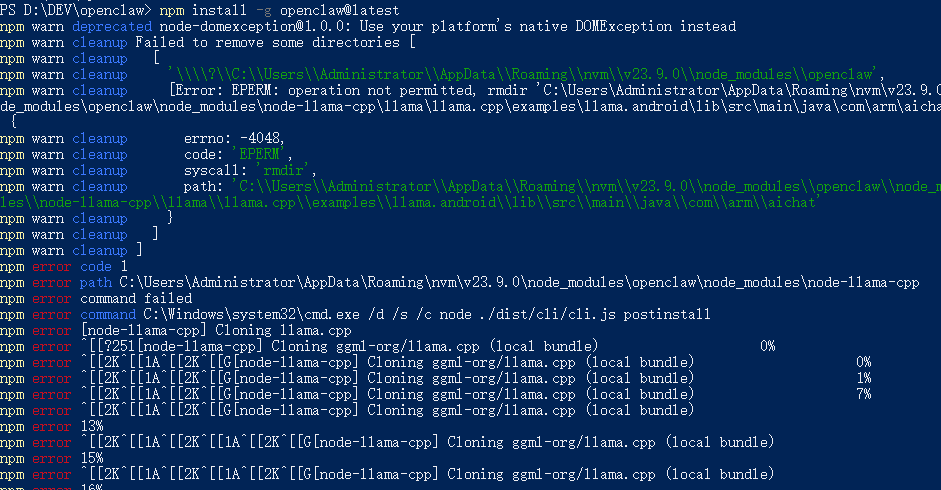 这个错误在deepSeek上的解释是:
- 预编译二进制加载失败
text
Failed to load a prebuilt binary ... A dynamic link library (DLL) initialization routine failed.这表明
node-llama-cpp尝试加载针对 Windows x64 的预编译原生模块(llama-addon.node)时,由于缺少 Visual C++ 运行时库或系统环境不匹配而失败。- 缺少构建工具
在预编译二进制失败后,安装脚本尝试从源码编译,但需要 CMake 和xpm工具:
xpm命令未找到。- 进一步导致 CMake 下载失败,最终构建过程退出。
- 权限问题
清理旧目录时出现EPERM(操作不允许),可能是当前命令行没有以管理员身份运行,导致无法删除某些文件。
然后我的解决方案是:
1.安装官方构建工具:
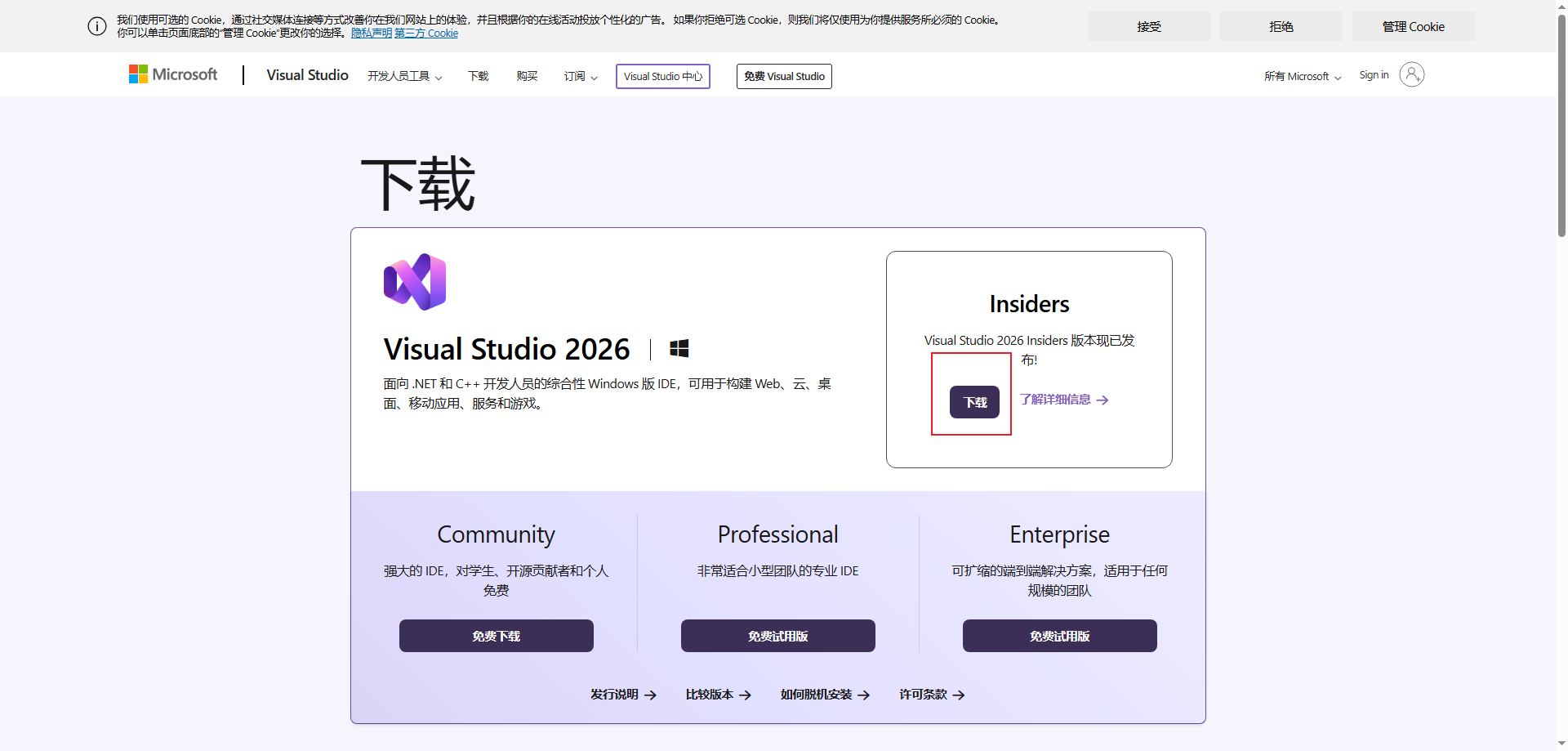
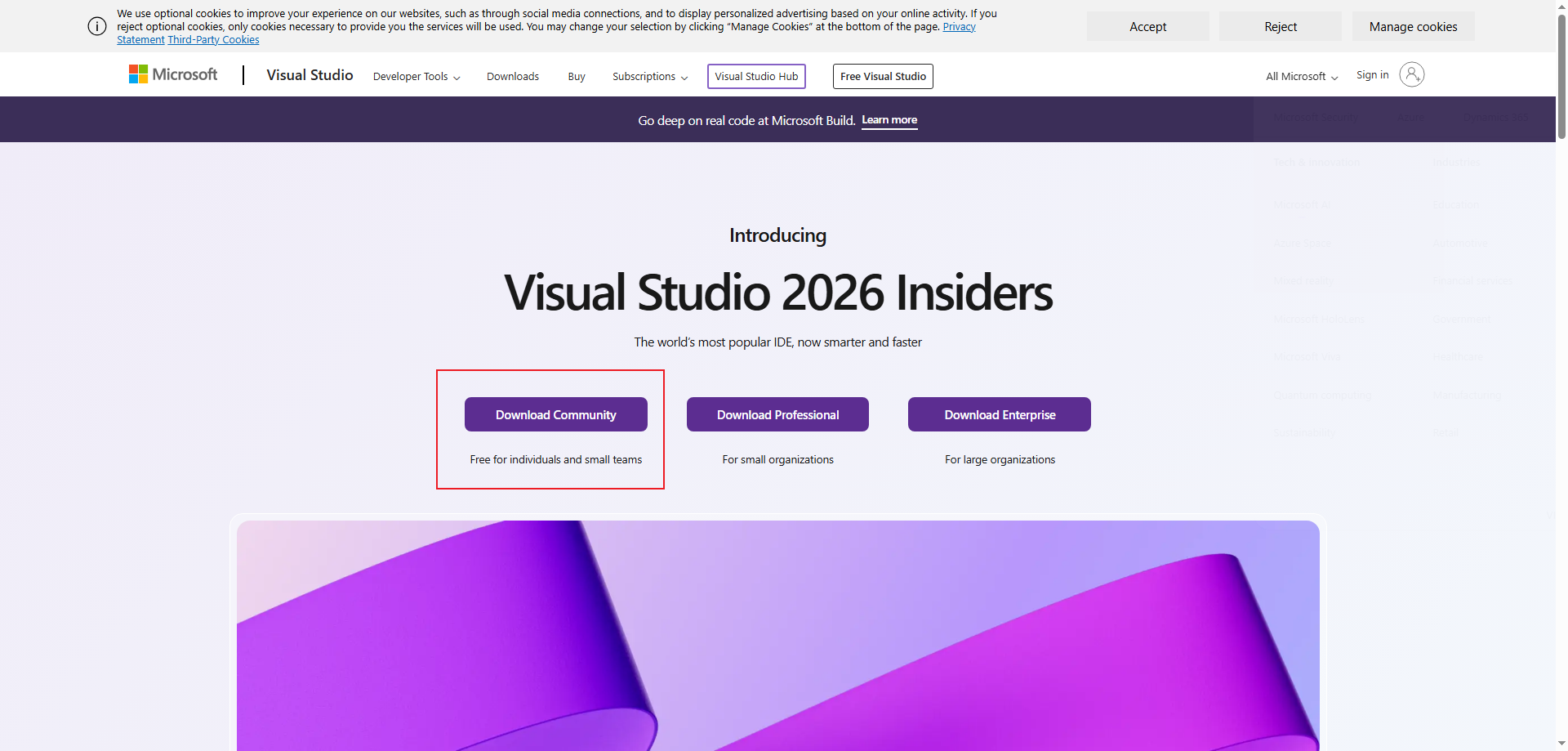
(1)打开 https://visualstudio.microsoft.com/zh-hans/downloads/,
(2)下载名为
vs_BuildTools.exe的安装程序
2.安装安装关键组件
3.重启电脑
(1)打开 "Visual Studio Installer"
在开始菜单搜索 "Visual Studio Installer" 并打开
找到已安装的 "Visual Studio Build Tools 2026"
点击 "修改"
(4)重启电脑(必须!确保环境变量生效)
4.验证:
重启后,在管理员 PowerShell 中运行:
# 应该能看到类似路径,如 C:Program FilesMicrosoft Visual Studio2026BuildToolsVC
GPT plus 代充 只需 145$env:VCToolsInstallDir
# 检查 cl.exe 编译器
Get-Command cl.exe -ErrorAction SilentlyContinue# 如果上面没输出,尝试加载编译环境
GPT plus 代充 只需 145& "C:Program FilesMicrosoft Visual Studio2026BuildToolsCommon7ToolsLaunch-VsDevShell.ps1"
5.清理缓存重新安装
# 清理缓存 + 卸载旧版
npm cache clean --force npm uninstall -g openclaw# 全局安装
GPT plus 代充 只需 145npm install -g openclaw@latest
按照2.1进行处理后,如果还是报错
PS D:DEVopenclaw> npm cache clean --force npm warn using --force Recommended protections disabled. PS D:DEVopenclaw> npm uninstall -g openclaw removed 1 package in 664ms PS D:DEVopenclaw> iwr -useb https://openclaw.ai/install.ps1 | iex iwr : 请求被中止: 未能创建 SSL/TLS 安全通道。 所在位置 行:1 字符: 1 + iwr -useb https://openclaw.ai/install.ps1 | iex + ~~~~~~~~~~~~~~~~~~~~~~~~~~~~~~~~~~~~~~~~~ + CategoryInfo : InvalidOperation: (System.Net.HttpWebRequest:HttpWebRequest) [Invoke-WebRequest],WebExce ption + FullyQualifiedErrorId : WebCmdletWebResponseException,Microsoft.PowerShell.Commands.InvokeWebRequestCommand PS D:DEVopenclaw>(因为截图没了,只能贴代码块)
错误分析:
iwr : 请求被中止: 未能创建 SSL/TLS 安全通道这个错误意味着你的 PowerShell 无法与openclaw.ai建立安全连接,常见原因:PowerShell 默认 TLS 版本过低(你的系统可能只启用了旧版 TLS)
解决方案
1.强制使用TLS1.2
GPT plus 代充 只需 145[Net.ServicePointManager]::SecurityProtocol = [Net.SecurityProtocolType]::Tls12
1.结束所有可能正在运行的 node 进程
PS D:DEVopenclaw> taskkill /F /IM node.exe 2>$null2. 强制删除之前安装失败的 openclaw 文件夹
GPT plus 代充 只需 145PS D:DEVopenclaw> Remove-Item -Recurse -Force "$env:APPDATA vmv23.9.0 ode_modulesopenclaw" -ErrorAction SilentlyContinue
3. 删除可能的命令链接
PS D:DEVopenclaw> Remove-Item -Force "$env:APPDATA pmopenclaw*" -ErrorAction SilentlyContinue4. 清理 npm 缓存
GPT plus 代充 只需 145PS D:DEVopenclaw> npm cache clean --force npm warn using --force Recommended protections disabled.
5.设置国内镜像加速
npm config set registry https://registry.npmmirror.com6.因为本人电脑编译有问题所有直接跳过编译,直接进行安装了。如果大家没问题,可以跳过这一步。设置环境变量,跳过 llama.cpp 的下载和编译
GPT plus 代充 只需 145$env:NODE_LLAMA_CPP_SKIP_DOWNLOAD="true"
7. 使用 --ignore-scripts 参数进行全局安装 npm install -g openclaw@latest --ignore-scripts
PS D:DEVopenclaw> npm install -g openclaw@latest --ignore-scripts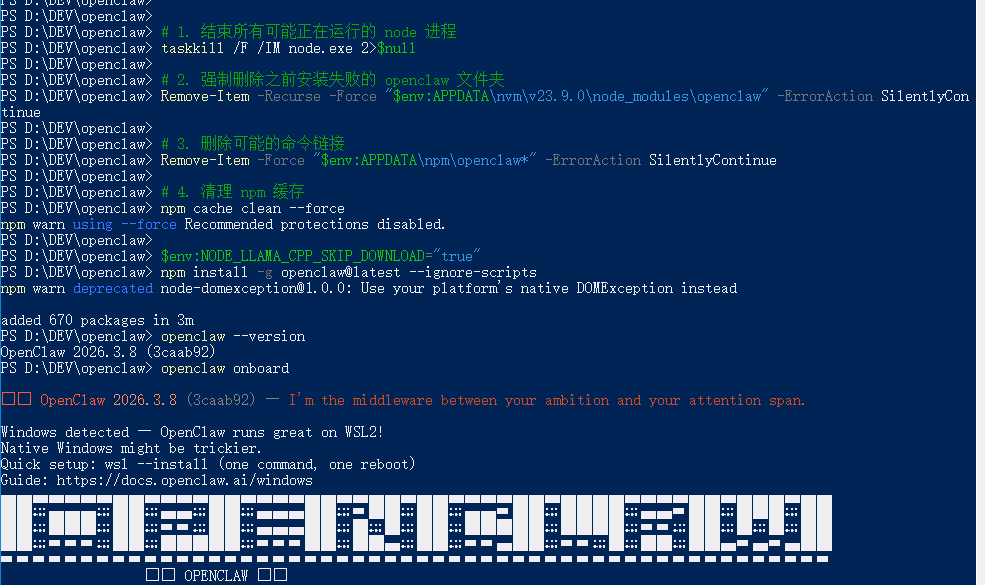
基本上就安装好了
由于我是先进行了配置,然后再去申请的api,所以我这边很多都是跳过。
大家可以复制出来给deepSeek/豆包等帮大家选择一下
1.进入阿里云,点击左上角大模型

2.点击免费体验Qwen3.5进行申请
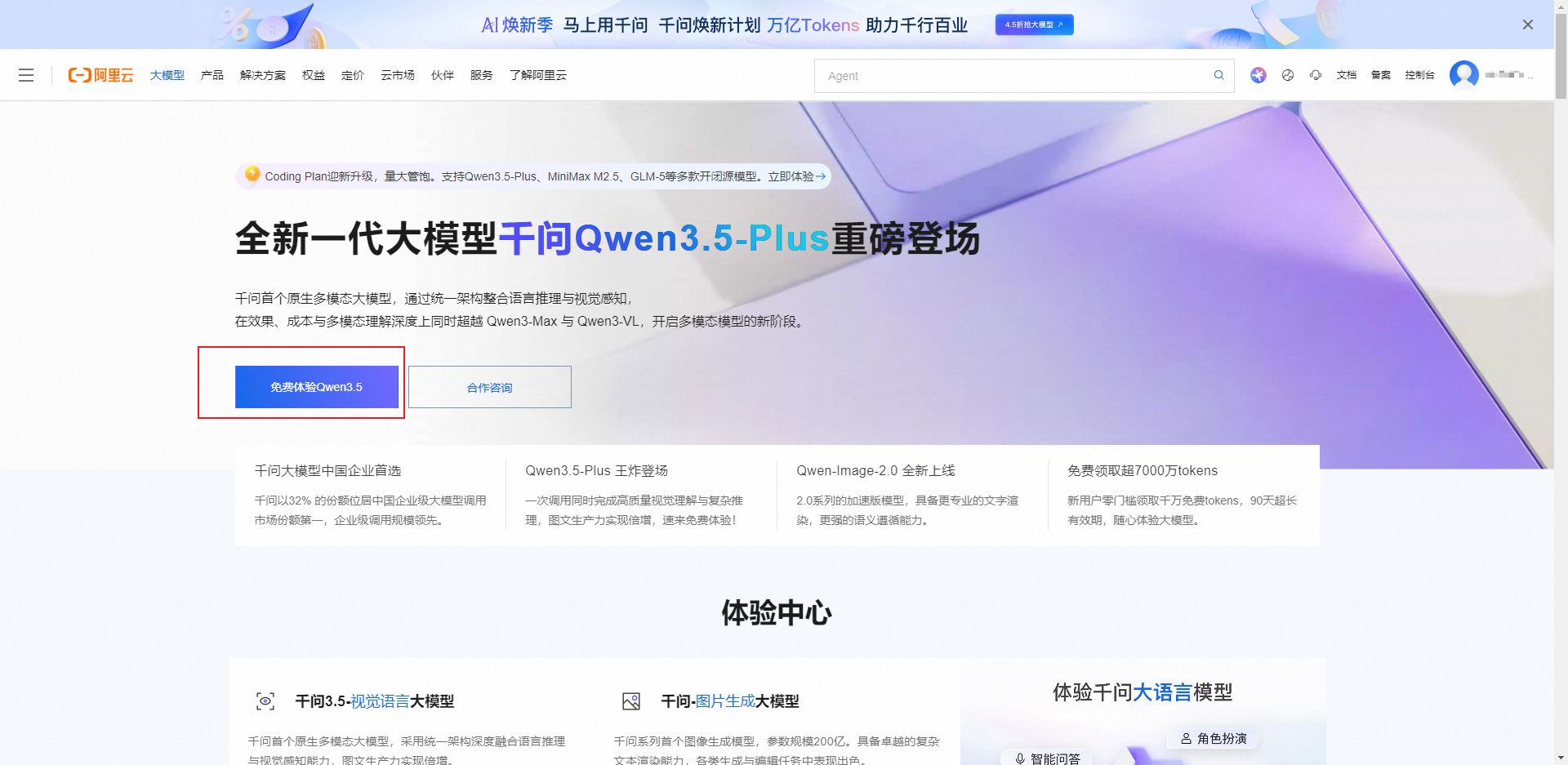 3.创建API账号。点击权限管理,然后新增,按要求填写即可
在 Windows PowerShell 运行
GPT plus 代充 只需 145notepad “$env:USERPROFILE.openclawopenclaw.json”
会打开一个文件
将你的API放入其中即可。
2.调整日志存放目录。在上面json文件中,增加logging即可。
后面会重启会看到
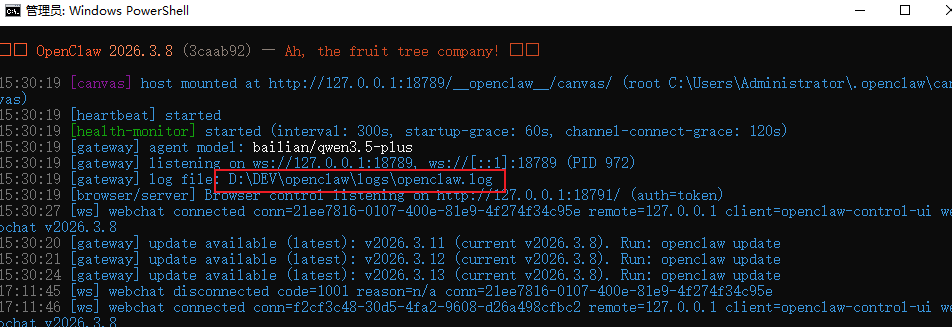
即可
以上就安装完成了。
版权声明:本文内容由互联网用户自发贡献,该文观点仅代表作者本人。本站仅提供信息存储空间服务,不拥有所有权,不承担相关法律责任。如发现本站有涉嫌侵权/违法违规的内容,请联系我们,一经查实,本站将立刻删除。
如需转载请保留出处:https://51itzy.com/kjqy/244474.html