
Emacs快速入门
Ubuntu初安装时,其时是有emacs图形界面和emacs终端界面两个快捷方式的。你只需要用鼠标点击就可以进入相应的模式。
不过如果你真心开始想用emacs,相信会有更便捷的方式,比如在终端输入emacs -nw,我们可以查emacs的帮助文档来看一眼这个-nw参数是什么意思(--no-window-system, -nw),如下
打开emacs的帮助文档:emacs --help
另外对于emacs,我想说的是,其实常用的命令并不多,花几小时就能熟悉,熟练掌握也不难,但需要经常使用,不然肯定会忘记掉。
emacs --help Usage: emacs [OPTION-OR-FILENAME]... Run Emacs, the extensible, customizable, self-documenting real-time display editor. The recommended way to start Emacs for normal editing is with no options at all. Run M-x info RET m emacs RET m emacs invocation RET inside Emacs to read the main documentation for these command-line arguments. Initialization options: --batch do not do interactive display; implies -q --chdir DIR change to directory DIR --daemon start a server in the background --debug-init enable Emacs Lisp debugger for init file --display, -d DISPLAY use X server DISPLAY --no-desktop do not load a saved desktop --no-init-file, -q load neither ~/.emacs nor default.el --no-loadup, -nl do not load loadup.el into bare Emacs --no-site-file do not load site-start.el --no-x-resources do not load X resources --no-site-lisp, -nsl do not add site-lisp directories to load-path --no-splash do not display a splash screen on startup --no-window-system, -nw do not communicate with X, ignoring $DISPLAY --quick, -Q equivalent to: -q --no-site-file --no-site-lisp --no-splash --no-x-resources --script FILE run FILE as an Emacs Lisp script --terminal, -t DEVICE use DEVICE for terminal I/O --user, -u USER load ~USER/.emacs instead of your own Action options: FILE visit FILE using find-file +LINE go to line LINE in next FILE +LINE:COLUMN go to line LINE, column COLUMN, in next FILE --directory, -L DIR prepend DIR to load-path (with :DIR, append DIR) --eval EXPR evaluate Emacs Lisp expression EXPR --execute EXPR evaluate Emacs Lisp expression EXPR --file FILE visit FILE using find-file --find-file FILE visit FILE using find-file --funcall, -f FUNC call Emacs Lisp function FUNC with no arguments --insert FILE insert contents of FILE into current buffer --kill exit without asking for confirmation --load, -l FILE load Emacs Lisp FILE using the load function --visit FILE visit FILE using find-file Display options: --background-color, -bg COLOR window background color --basic-display, -D disable many display features; used for debugging Emacs --border-color, -bd COLOR main border color --border-width, -bw WIDTH width of main border --color, --color=MODE override color mode for character terminals; MODE defaults to `auto', and can also be `never', `always', or a mode name like `ansi8' --cursor-color, -cr COLOR color of the Emacs cursor indicating point --font, -fn FONT default font; must be fixed-width --foreground-color, -fg COLOR window foreground color --fullheight, -fh make the first frame high as the screen --fullscreen, -fs make the first frame fullscreen --fullwidth, -fw make the first frame wide as the screen --maximized, -mm make the first frame maximized --geometry, -g GEOMETRY window geometry --no-bitmap-icon, -nbi do not use picture of gnu for Emacs icon --iconic start Emacs in iconified state --internal-border, -ib WIDTH width between text and main border --line-spacing, -lsp PIXELS additional space to put between lines --mouse-color, -ms COLOR mouse cursor color in Emacs window --name NAME title for initial Emacs frame --no-blinking-cursor, -nbc disable blinking cursor --reverse-video, -r, -rv switch foreground and background --title, -T TITLE title for initial Emacs frame --vertical-scroll-bars, -vb enable vertical scroll bars --xrm XRESOURCES set additional X resources --parent-id XID set parent window --help display this help and exit --version output version information and exit You can generally also specify long option names with a single -; for example, -batch as well as --batch. You can use any unambiguous abbreviation for a --option. Various environment variables and window system resources also affect the operation of Emacs. See the main documentation. Report bugs to . First, please see the Bugs section of the Emacs manual or the file BUGS.讯享网
Emacs命令的格式
通常你可以找到一些emacs的cheat sheet,这里面会有大量的命令描述,所以弄清楚这些命令代表哪些按键是最基本的要求,最常用的组合通常有下面这些,
- C-n :最常用的命令格式(n为任意字符)
- ESC n :次常用的命令格式(n为任意字符)
- C-x something : (通常为文件操作类)
- C-c something : (通常与某些特殊的编辑模式有关)
按键 含义
C-g 表示Ctrl+g组合键,即C代表Crtl
RETURN 回车键,即enter
META ESC(或Alt)键
ESC x 先按下ESC,再按下x键,注意先后顺序
S-right 按下shift键,同时按下按下鼠标右键
C-S-right 按下shift键,同时按下ctrl键和鼠标右键
注:
- 每个emacs都有完整的名字,如:forward-word命令即按下ESC f
- 当发现一个命令有全名,却没有对应的按键时,可以先输入ESC x,再输入相应的全名,回车后即执行。
- META键很特殊,在sun工作站上空格两边即为此按键,但是在大多数键盘上这个按键并不存在,其功能基本上与ESC等价,在某些键盘上与Alt通用。
- META与ESC的区别在于:
- META的组合命令在按键的同时输入,同时放开键
- ESC的组合命令先按ESC,松开后输入其余内容。

Emacs打开方式
(图形界面) 在终端界面输入:
讯享网$ emacs hello.c 或 $ emacs
如果你想要在终端使用字符界面,如前所述,在终端界面输入:
$ emacs -nw hello.c即可。
常用的命令
常用的命令这里只列一下,其实你只要在网上搜索emacs cheatsheet就可以找到这些PDF文件,当然也有emacs cheatsheet的墙纸。下面这个链接就提供了不少漂亮的墙纸,你可以根据你的电脑显示器的尺寸去下载,做桌面也是挺不错的,
顺便说一下,emacswiki(https://www.emacswiki.org/emacs)是个非常不错的中文学习网站。
M-x cd:切换当前工作目录(这个命令cheatsheet里居然没有,特别列出来)
一般情况下,当使用‘C-x C-f’命令时,你看到的是 home directory,如果要切换目录,请使用“M-x cd”命令
如果你要设定emacs的启动目录,可以使用command-line-default-directory,我的`.emacs`配置文件看起就是这样的
讯享网(custom-set-variables ;; the below lines are for color theme setting '(ansi-color-faces-vector [default default default italic underline success warning error]) '(ansi-color-names-vector ["#2e3436" "#a40000" "#4e9a06" "#c4a000" "#204a87" "#5c3566" "#729fcf" "#eeeeec"]) '(custom-enabled-themes (quote (wheatgrass)))) (custom-set-faces) (setq command-line-default-directory "~/devc/emacsdir" )
下面我象征性地列一下各个命令,这些命令的原文的地址在:https://www.ast.cam.ac.uk/~vasily/idl/emacs_commands_list.html
C = Control M = Meta = Alt|Esc Basics C-x C-f "find" file i.e. open/create a file in buffer C-x C-s save the file C-x C-w write the text to an alternate name C-x C-v find alternate file C-x i insert file at cursor position C-x b create/switch buffers C-x C-b show buffer list C-x k kill buffer C-z suspend emacs C-X C-c close down emacs Basic movement C-f forward char C-b backward char C-p previous line C-n next line M-f forward one word M-b backward one word C-a beginning of line C-e end of line C-v one page up M-v scroll down one page M-< beginning of text M-> end of text Editing M-n repeat the following command n times C-u repeat the following command 4 times C-u n repeat n times C-d delete a char M-d delete word M-Del delete word backwards C-k kill line C-Space Set beginning mark (for region marking for example) C-W "kill" (delete) the marked region region M-W copy the marked region C-y "yank" (paste) the copied/killed region/line M-y yank earlier text (cycle through kill buffer) C-x C-x exchange cursor and mark C-t transpose two chars M-t transpose two words C-x C-t transpose lines M-u make letters uppercase in word from cursor position to end M-c simply make first letter in word uppercase M-l opposite to M-u Important C-g quit the running/entered command C-x u undo previous action M-x revert-buffer RETURN (insert like this) undo all changes since last save M-x recover-file RETURN Recover text from an autosave-file M-x recover-session RETURN if you edited several files Online-Help C-h c which command does this keystroke invoke C-h k which command does this keystroke invoke and what does it do? C-h l what were my last 100 typed keys C-h w what key-combo does this command have? C-h f what does this function do C-h v what's this variable and what is it's value C-h b show all keycommands for this buffer C-h t start the emacs tutorial C-h i start the info reader C-h C-k start up info reader and go to a certain key-combo point C-h F show the emacs FAQ C-h p show infos about the Elisp package on this machine Search/Replace C-s Search forward C-r search backward C-g return to where search started (if you are still in search mode) M-% query replace Space or y replace this occurence Del or n don't replace . only replace this and exit (replace) , replace and pause (resume with Space or y) ! replace all following occurences ^ back to previous match RETURN or q quit replace Search/Replace with regular expressions Characters to use in regular expressions: ^ beginning of line $ end of line . single char .* group or null of chars \< beginning of a word \> end of a word [] every char inside the backets (for example [a-z] means every small letter) M C-s RETURN search for regular expression forward M C-r RETURN search for regular expression backward M C-s incremental search C-s repeat incremental search M C-r incremental search backwards C-r repeat backwards M-x query-replace-regexp search and replace Window-Commands C-x 2 split window vertically C-x o change to other window C-x 0 delete window C-x 1 close all windows except the one the cursors in C-x ^ enlarge window M-x shrink-window command says it ;-) M C-v scroll other window C-x 4 f find file in other window C-x 4 o change to other window C-x 4 0 kill buffer and window C-x 5 2 make new frame C-x 5 f find file in other frame C-x 5 o change to other frame C-x 5 0 close this frame Bookmark commands C-x r m set a bookmark at current cursor pos C-x r b jump to bookmark M-x bookmark-rename says it M-x bookmark-delete " M-x bookmark-save " C-x r l list bookmarks d mark bookmark for deletion r rename bookmark s save all listed bookmarks f show bookmark the cursor is over m mark bookmarks to be shown in multiple window v show marked bookmarks (or the one the cursor is over) t toggle listing of the corresponding paths w " path to this file x delete marked bookmarks Del ? q quit bookmark list M-x bookmark-write write all bookmarks in given file M-x bookmark-load load bookmark from given file Shell M-x shell starts shell modus C-c C-c same as C-c under unix (stop running job) C-d delete char forward C-c C-d Send EOF C-c C-z suspend job (C-z under unix) M-p show previous commands DIRectory EDitor (dired) C-x d start up dired C (large C) copy d mark for erase D delete right away e or f open file or directory g reread directory structure from file G change group permissions (chgrp) k delete line from listing on screen (don't actually delete) m mark with * n move to next line o open file in other window and go there C-o open file in other window but don't change there P print file q quit dired Q do query-replace in marked files R rename file u remove mark v view file content x delete files marked with D z compress file M-Del remove all marks (whatever kind) ~ mark backup files (name~ files) for deletion # mark auto-save files (#name#) for deletion */ mark directory with * (C-u * removes that mark again) = compare this file with marked file M-= compare this file with it's backup file ! apply shell command to this file M-} change to the next file marked with * od D M-{ " previous " % d mark files described through regular expression for deletion % m " (with *) + create directory > changed to next dir < change to previous dir s toggle between sorting by name or date Maybe into this category also fits this command: M-x speedbar starts up a separate window with a directory view Telnet M-x telnet starts up telnet-modus C-d either delete char or send EOF C-c C-c stop running job (similar to C-c under unix) C-c C-d send EOF C-c C-o clear output of last command C-c C-z suspend execution of command C-c C-u kill line backwards M-p recall previous command Text Works only in text mode M-s center line M-S center paragraph M-x center-region name says Macro-commands C-x ( start macro definition C-x ) end of macro definition C-x e execute last definied macro M-n C-x e execute last defined macro n times M-x name-last-kbd-macro give name to macro (for saving) M-x insert-keyboard-macro save named macro into file M-x load-file load macro M-x macroname execute macroname Programming M C-\ indent region between cursor and mark M-m move to first (non-space) char in this line M-^ attach this line to previous M-; formatize and indent comment C, C++ and Java Modes M-a beginning of statement M-e end of statement M C-a beginning of function M C-e end of function C-c RETURN Set cursor to beginning of function and mark at the end C-c C-q indent the whole function according to indention style C-c C-a toggle modus in which after electric signs (like {}:';./*) emacs does the indention C-c C-d toggle auto hungry mode in which emacs deletes groups of spaces with one del-press C-c C-u go to beginning of this preprocessor statement C-c C-c comment out marked area More general (I guess) M-x outline-minor-mode collapses function definitions in a file to a mere {...} M-x show-subtree If you are in one of the collapsed functions, this un-collapses it In order to achive some of the feats coming up now you have to run etags *.c *.h *.cpp (or what ever ending you source files have) in the source directory M-. (Thats Meta dot) If you are in a function call, this will take you to it's definition M-x tags-search ENTER Searches through all you etaged M-, (Meta comma) jumps to the next occurence for tags-search M-x tags-query-replace yum. This lets you replace some text in all the tagged files GDB (Debugger) M-x gdb starts up gdm in an extra window Version Control C-x v d show all registered files in this dir C-x v = show diff between versions C-x v u remove all changes since last checkin C-x v ~ show certain version in different window C-x v l print log C-x v i mark file for version control add C-x v h insert version control header into file C-x v r check out named snapshot C-x v s create named snapshot C-x v a create changelog file in gnu-styleEmacs cheatsheet Wallpaper
这个墙纸前面提到了,我贴上来,由于分辨率是1920x1080的原因,只能下载后才能看清楚内容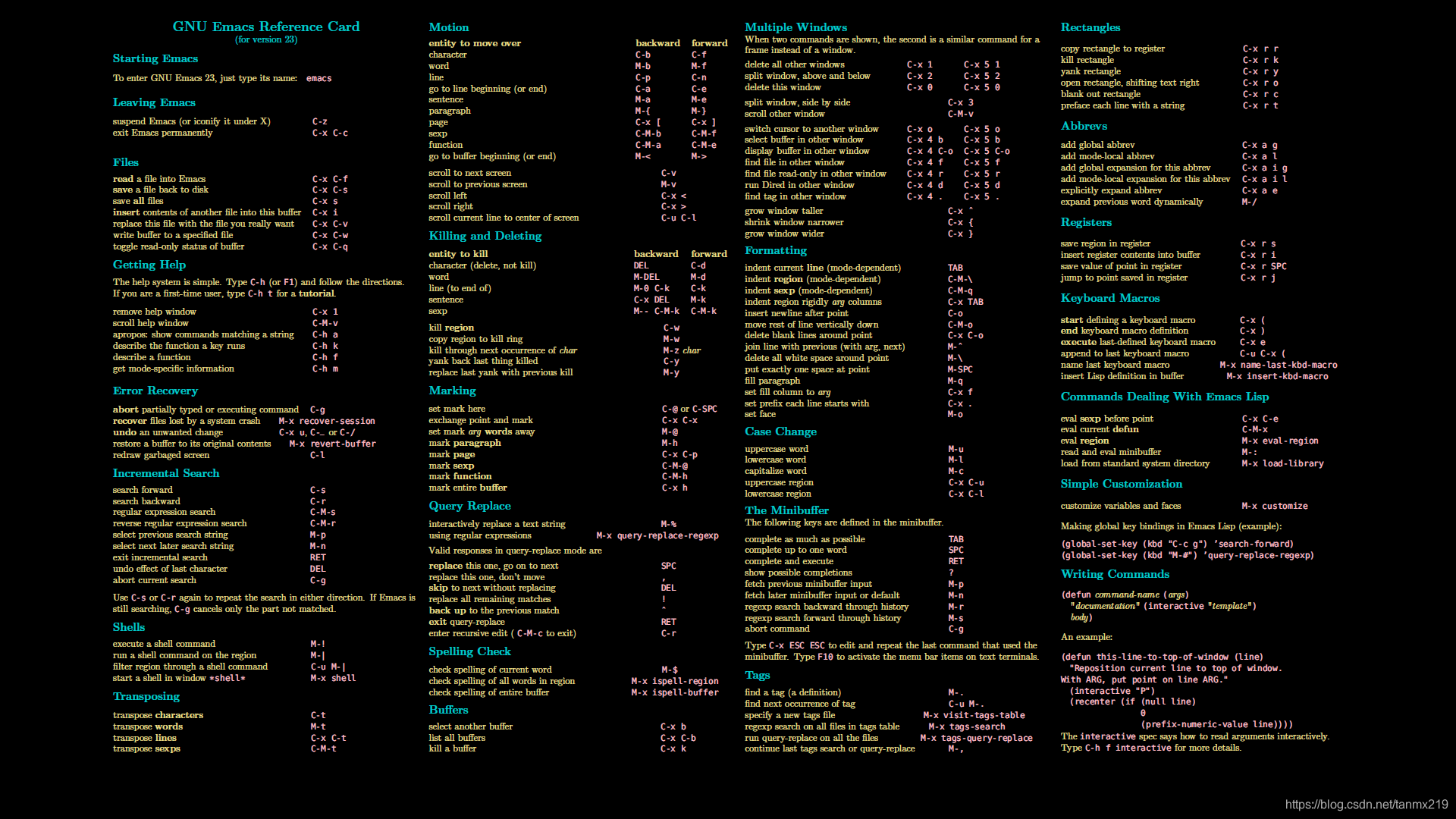
版权声明:本文内容由互联网用户自发贡献,该文观点仅代表作者本人。本站仅提供信息存储空间服务,不拥有所有权,不承担相关法律责任。如发现本站有涉嫌侵权/违法违规的内容,请联系我们,一经查实,本站将立刻删除。
如需转载请保留出处:https://51itzy.com/kjqy/86993.html