
商店地址:Odin
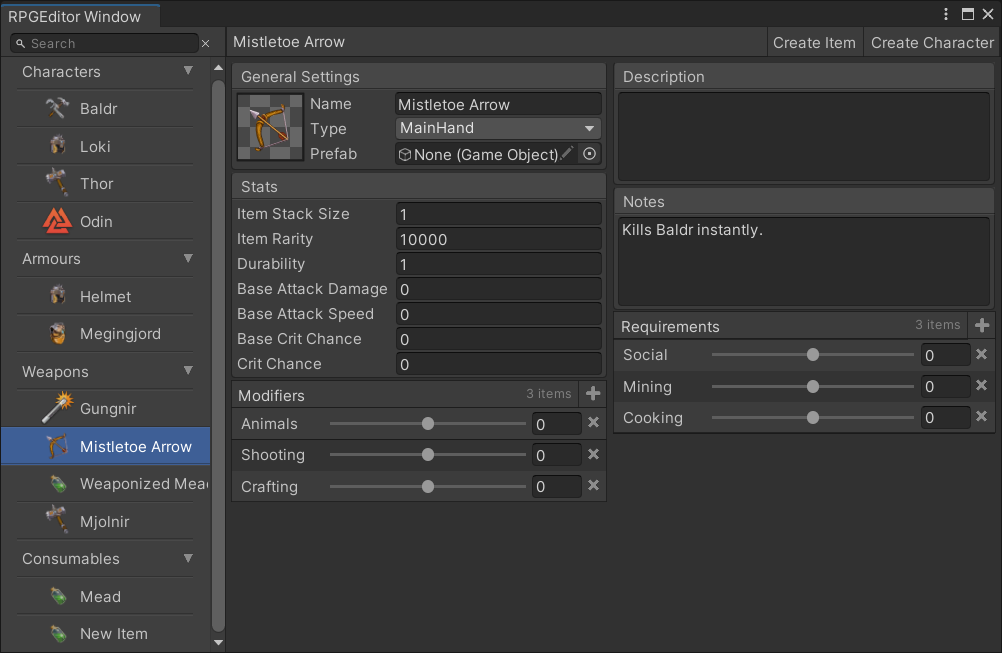
Odin是一个对编辑器进行拓展的插件,可以序列化各种数据,方便的制作出各种编辑器界面,如下:
讯享网
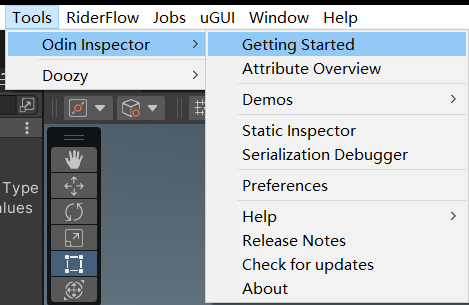
导入插件后,如图Tool–Odin Inspector–Getting Started可以查看Odin提供的概览界面。
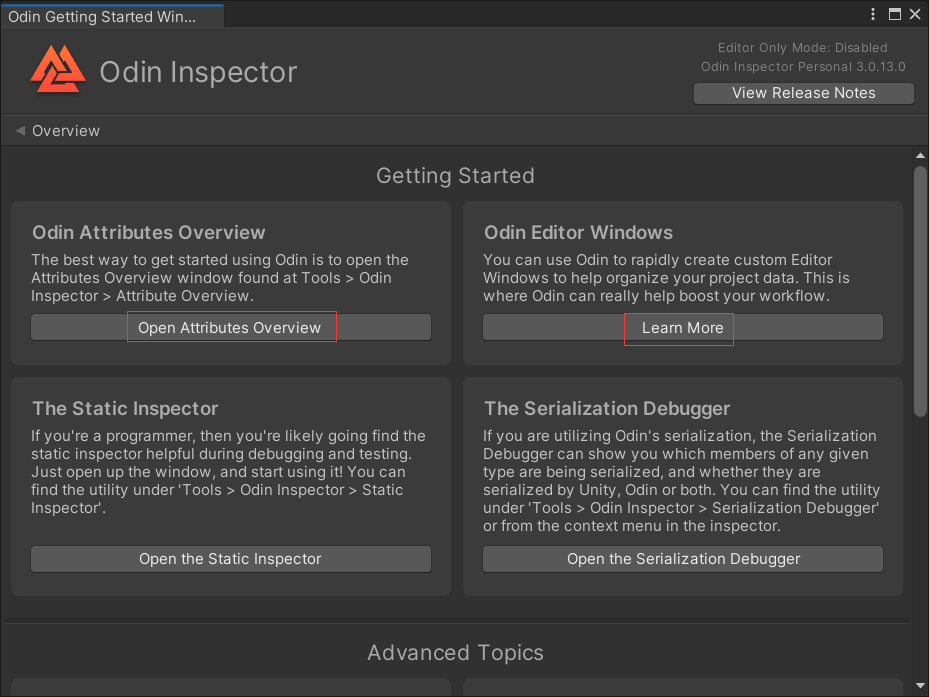
点击Open Attributes Overview会显示属性,字段编辑相关的示例,可以让我们方便的编辑Inspector界面的内容。点击Leran More会显示一些窗口相关的示例,方便自定义一些弹窗界面。
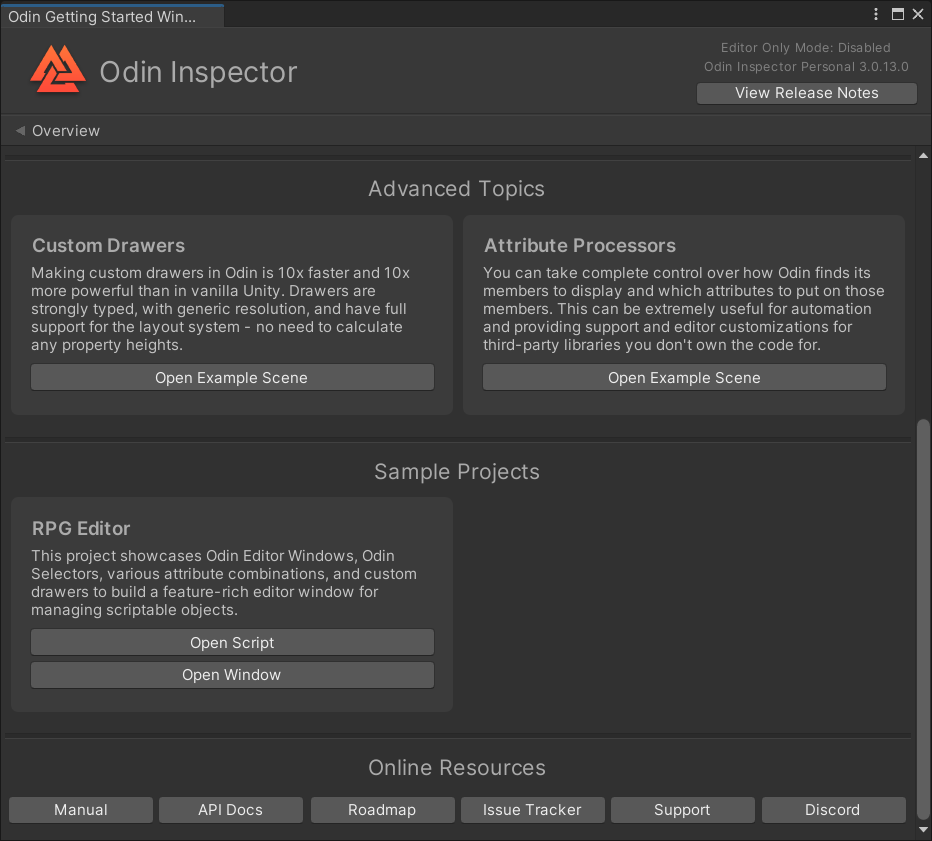
概览的下方提供了一些Scene样例,方便进一步学习。
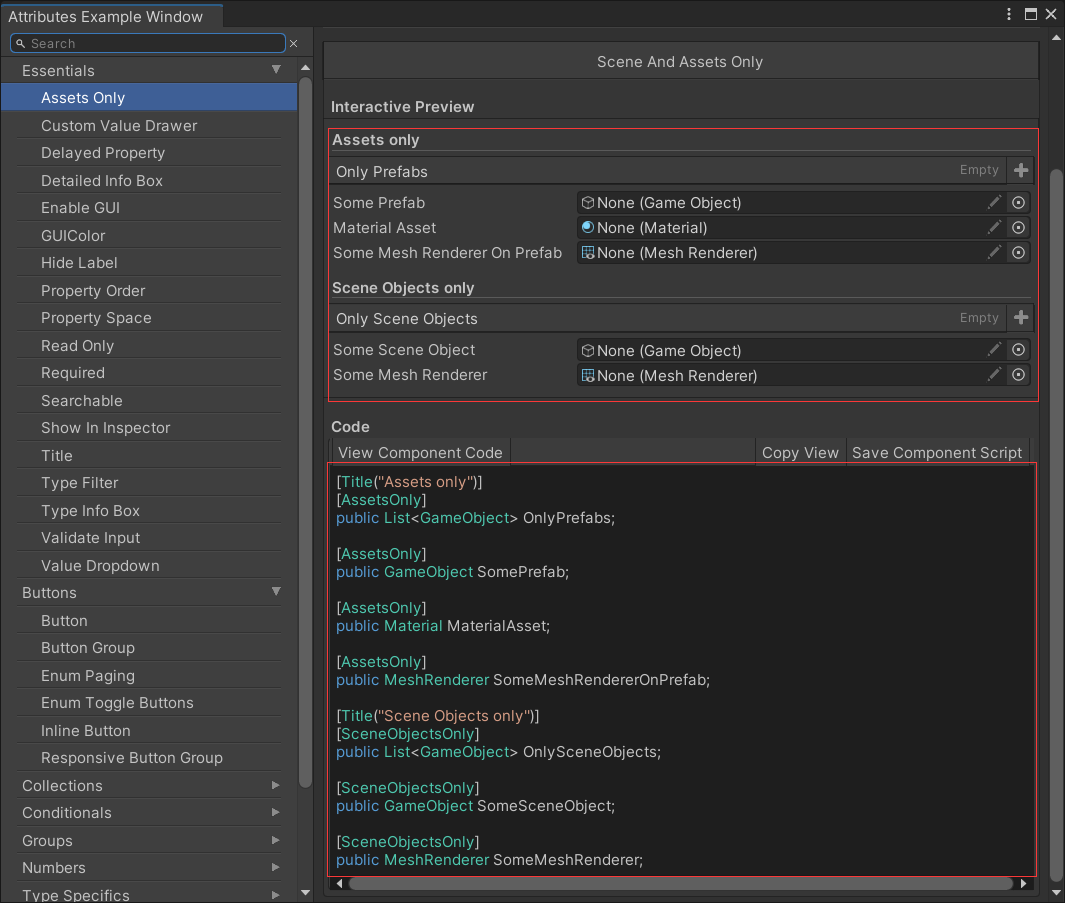
首先,查看字段相关的实例,如上图,左侧是分类,右侧上方是Inspector界面上绘制出的内容,右侧下方是对应的代码,可直接复制使用。
Odin提供了100多个特性(Attribute),只需要把特性加到字段上就可以显示上方的样式。特性简单说就是用来标记元素的,如字段,方法,类。这么多特性很难记住,一般是需要了再去查找合适的样式。
//AssetsOnly表示只能拖拽Assets目录下的资源,场景中的资源是无法拖动 [AssetsOnly] public GameObject SomePrefab; //SceneObjectsOnly相反,只能拖拽Scene场景中的资源 [SceneObjectsOnly] public GameObject SomeSceneObject; 讯享网
下面总结一些比较常用的特性
1.限制数值范围,滑块,进度条

讯享网 [Range(0, 100)] public int Field = 2; [MinValue(0)] public int IntMinValue0; [MaxValue(0)] public int IntMaxValue0; [ProgressBar(0, 100)] public float ProgressBar = 50;
2.数值变化时触发特定方法
 [OnValueChanged("OnValueChanged")] public int DelayedField; //ShowInInspector用于将属性显示到界面上 [ShowInInspector] [OnValueChanged("OnValueChanged")] public string DelayedProperty {
    get; set; } private void OnValueChanged() {
    Debug.Log("Value changed!"); }
3.颜色

讯享网 //字段添加颜色 [GUIColor(0.3f, 0.8f, 0.8f, 1f)] public int ColoredInt1; //调色板 [ColorPalette("Fall")] public Color Color1; //按钮添加颜色 [GUIColor(0, 1, 0)] [Button("ButtonName", ButtonSizes.Small)] private void ButtonMethod() {
    }
4.提示信息
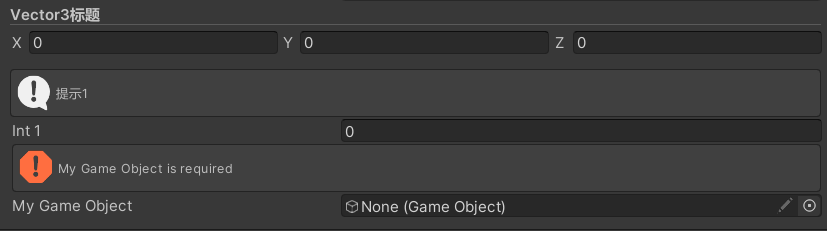
//HideLabel用于隐藏字段名 [Title("Vector3标题")] [HideLabel] public Vector3 WideVector1; //Space用于添加一行空隙 [Space] [InfoBox("提示1")] public int Int1; //MyGameObject为空时才会提示 [Required] public GameObject MyGameObject; 5.输入校验
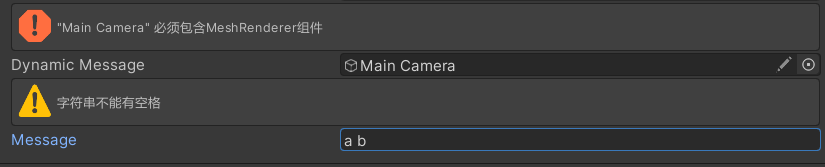
讯享网 [ValidateInput("HasMeshRenderer")] public GameObject DynamicMessage; private bool HasMeshRenderer(GameObject gameObject, ref string errorMessage) {
    if (gameObject == null) return true; if (gameObject.GetComponentInChildren<MeshRenderer>() == null) {
    errorMessage = "\"" + gameObject.name + "\" 必须包含MeshRenderer组件"; return false; } return true; } [ValidateInput("CheckSpace", "字符串不能有空格", InfoMessageType.Warning)] public string Message = "Dynamic"; private bool CheckSpace(string value) {
    return value.IndexOf(' ') < 0; }
6.下拉列表
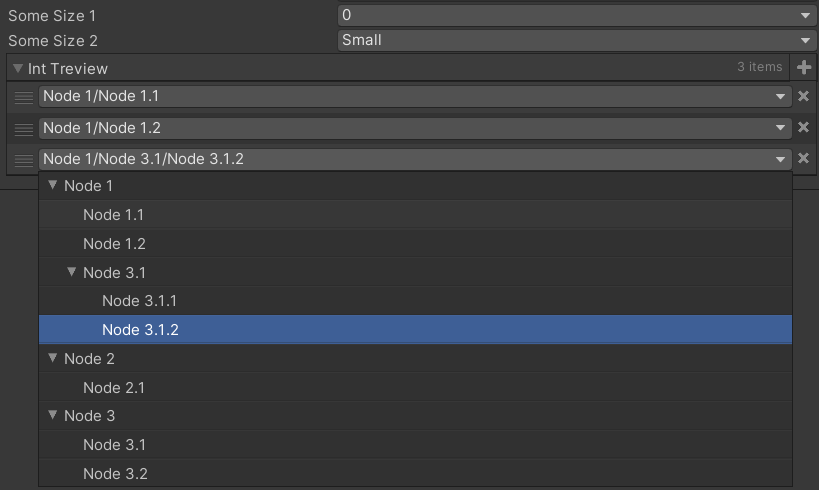

 [ValueDropdown("TextureSizes")] public int SomeSize1; private static int[] TextureSizes = new int[] {
    256, 512, 1024 }; [ValueDropdown("FriendlyTextureSizes")] public int SomeSize2; private static IEnumerable FriendlyTextureSizes = new ValueDropdownList<int>() {
    {
    "Small", 256 }, {
    "Medium", 512 }, {
    "Large", 1024 }, }; [ValueDropdown("TreeViewOfInts", ExpandAllMenuItems = true)] public List<int> IntTreview = new List<int>() {
    1, 2, 7 }; private IEnumerable TreeViewOfInts = new ValueDropdownList<int>() {
    {
    "Node 1/Node 1.1", 1 }, {
    "Node 1/Node 1.2", 2 }, {
    "Node 2/Node 2.1", 3 }, {
    "Node 3/Node 3.1", 4 }, {
    "Node 3/Node 3.2", 5 }, {
    "Node 1/Node 3.1/Node 3.1.1", 6 }, {
    "Node 1/Node 3.1/Node 3.1.2", 7 }, };
7.分组
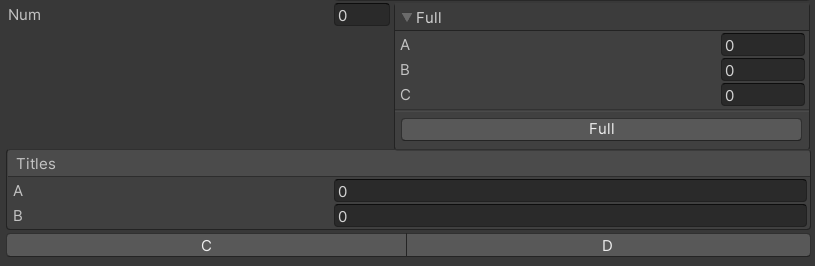
讯享网 //水平分组 [HorizontalGroup] public float num; [HorizontalGroup, Button(ButtonStyle.Box)] private void Full(float a, float b, out float c) {
    c = a + b; } //Box分组 [BoxGroup("Titles")] public int A; [BoxGroup("Titles")] public int B; //按钮分组 [ButtonGroup] private void C() {
    } [ButtonGroup] private void D() {
    }
8.集合

1.注意序列化字典必须继承SerializedMonoBehaviour,List不需要
public class Odin学习 : SerializedMonoBehaviour {
    public Dictionary<int, Material> IntMaterialLookup; [OnInspectorInit] private void CreateData() {
    IntMaterialLookup = new Dictionary<int, Material>() {
    {
    1, ExampleHelper.GetMaterial() }, {
7, ExampleHelper.GetMaterial() }, }; } } 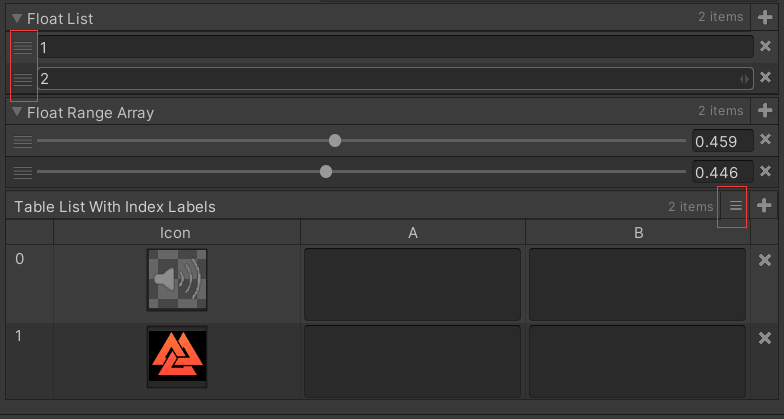
2.List不加特性也可以使用,拖动左侧的滑块可以调整元素的顺序,TableList可以将List转为表格的形式,点击加号左边的按钮可以切换会原来列表的形式。
讯享网 public List<float> FloatList; [Range(0, 1)] public float[] FloatRangeArray; [TableList(ShowIndexLabels = true, AlwaysExpanded = true)] public List<SomeCustomClass> TableListWithIndexLabels = new List<SomeCustomClass>() {
    new SomeCustomClass(), new SomeCustomClass(), }; [Serializable] public class SomeCustomClass {
    [TableColumnWidth(57)] [PreviewField(Alignment = ObjectFieldAlignment.Center)] public Texture Icon; [TextArea] public string A, B; }
9.条件
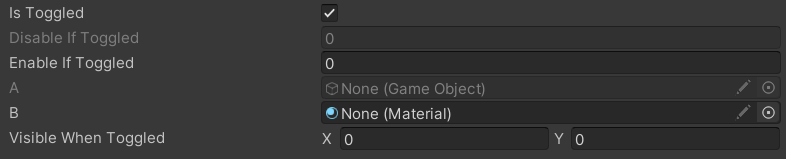
public bool IsToggled; [DisableIf("IsToggled")] public int DisableIfToggled; [EnableIf("IsToggled")] public int EnableIfToggled; [DisableInEditorMode] public GameObject A; [DisableInPlayMode] public Material B; [HideIf("IsToggled")] public Vector3 HiddenWhenToggled; [ShowIf("IsToggled")] public Vector2 VisibleWhenToggled; 10.资源列表
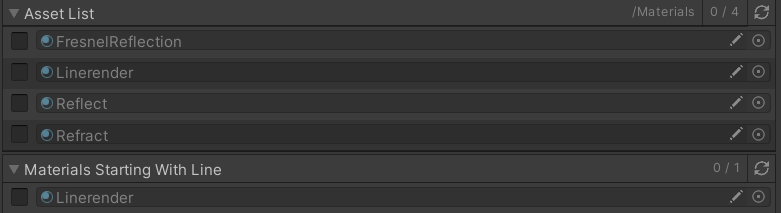
讯享网 //显示该路径下的材质,路径前面的Assets不用写 [AssetList(Path = "Materials/")] public List<Material> AssetList; [AssetList(AssetNamePrefix = "Line")] public List<Material> MaterialsStartingWithLine;
11.排序

[PropertyOrder(1)] public int Second; [PropertyOrder(-1)] public int First; 12.窗口
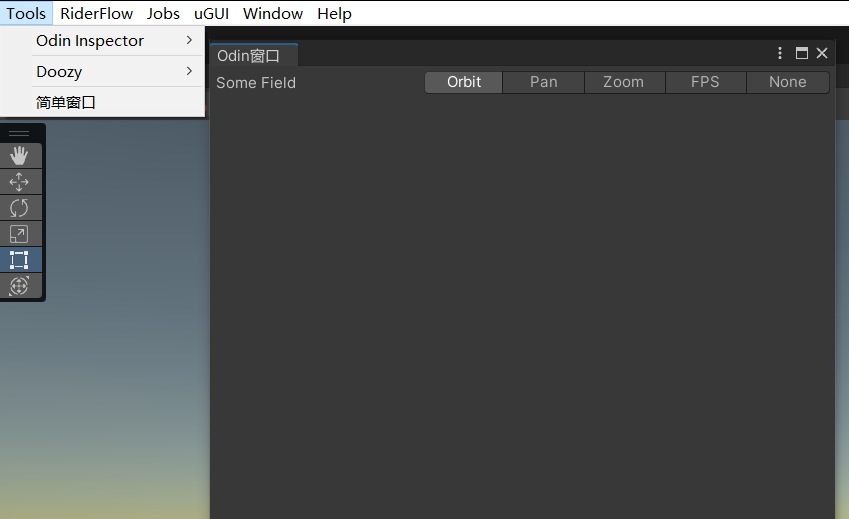
讯享网public class Odin窗口 : OdinEditorWindow {
    [MenuItem("Tools/简单窗口")] private static void OpenWindow() {
    var window = GetWindow<Odin窗口>(); window.position = GUIHelper.GetEditorWindowRect().AlignCenter(500, 500); } [EnumToggleButtons] public ViewTool SomeField; }
版权声明:本文内容由互联网用户自发贡献,该文观点仅代表作者本人。本站仅提供信息存储空间服务,不拥有所有权,不承担相关法律责任。如发现本站有涉嫌侵权/违法违规的内容,请联系我们,一经查实,本站将立刻删除。
如需转载请保留出处:https://51itzy.com/kjqy/72759.html