
完全自定义悬浮窗,保证100%学会的超简单悬浮窗
先看看效果图:
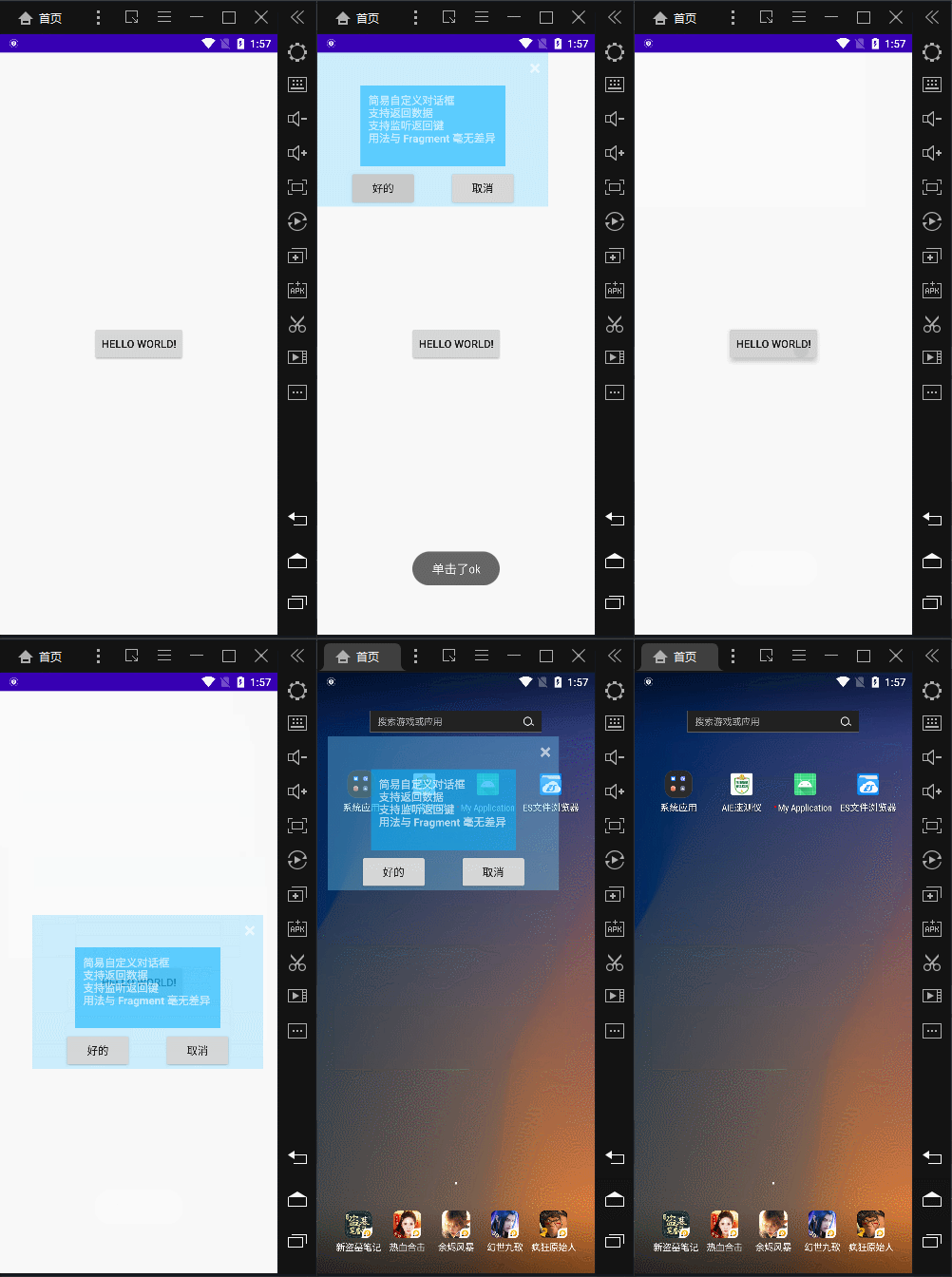
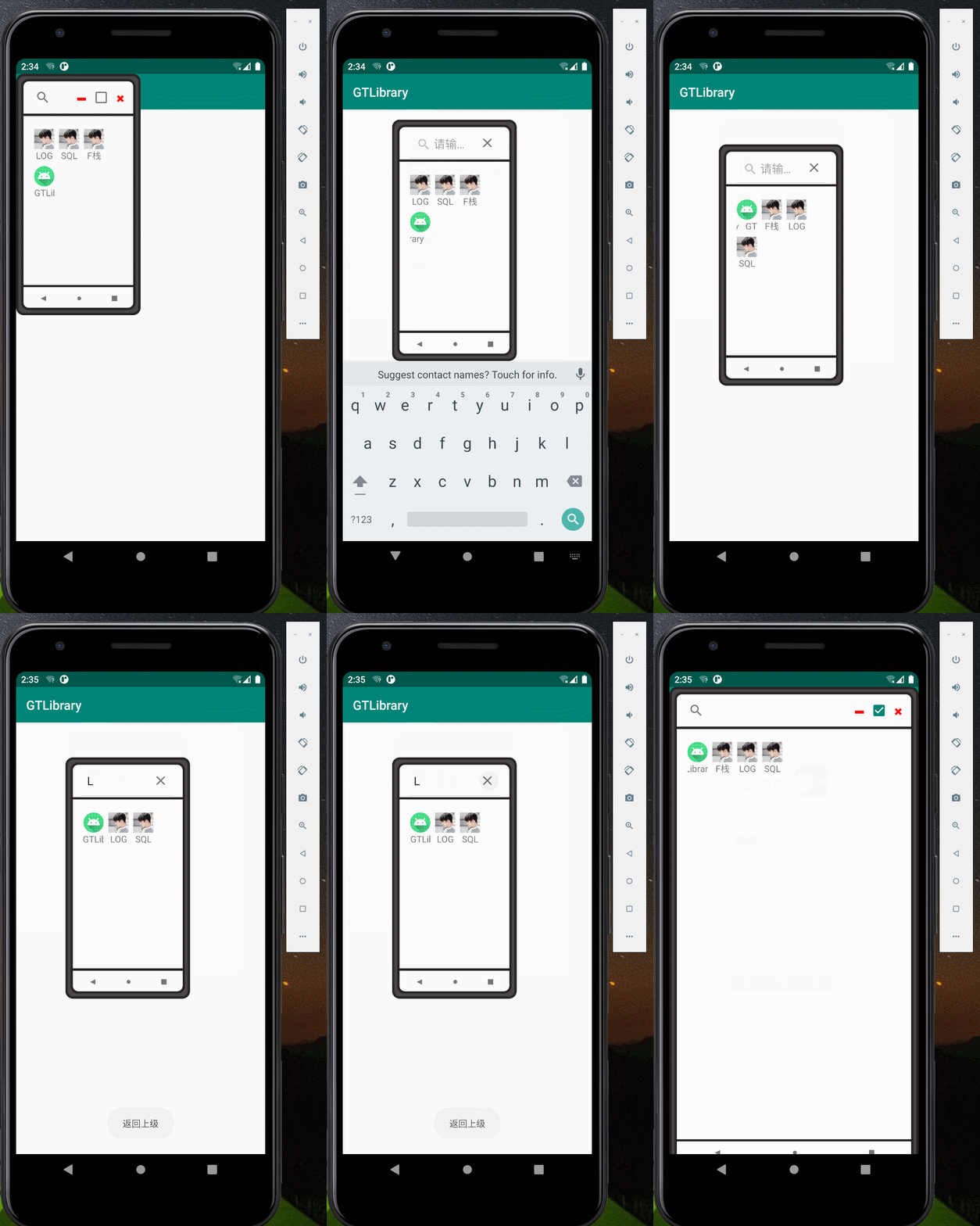
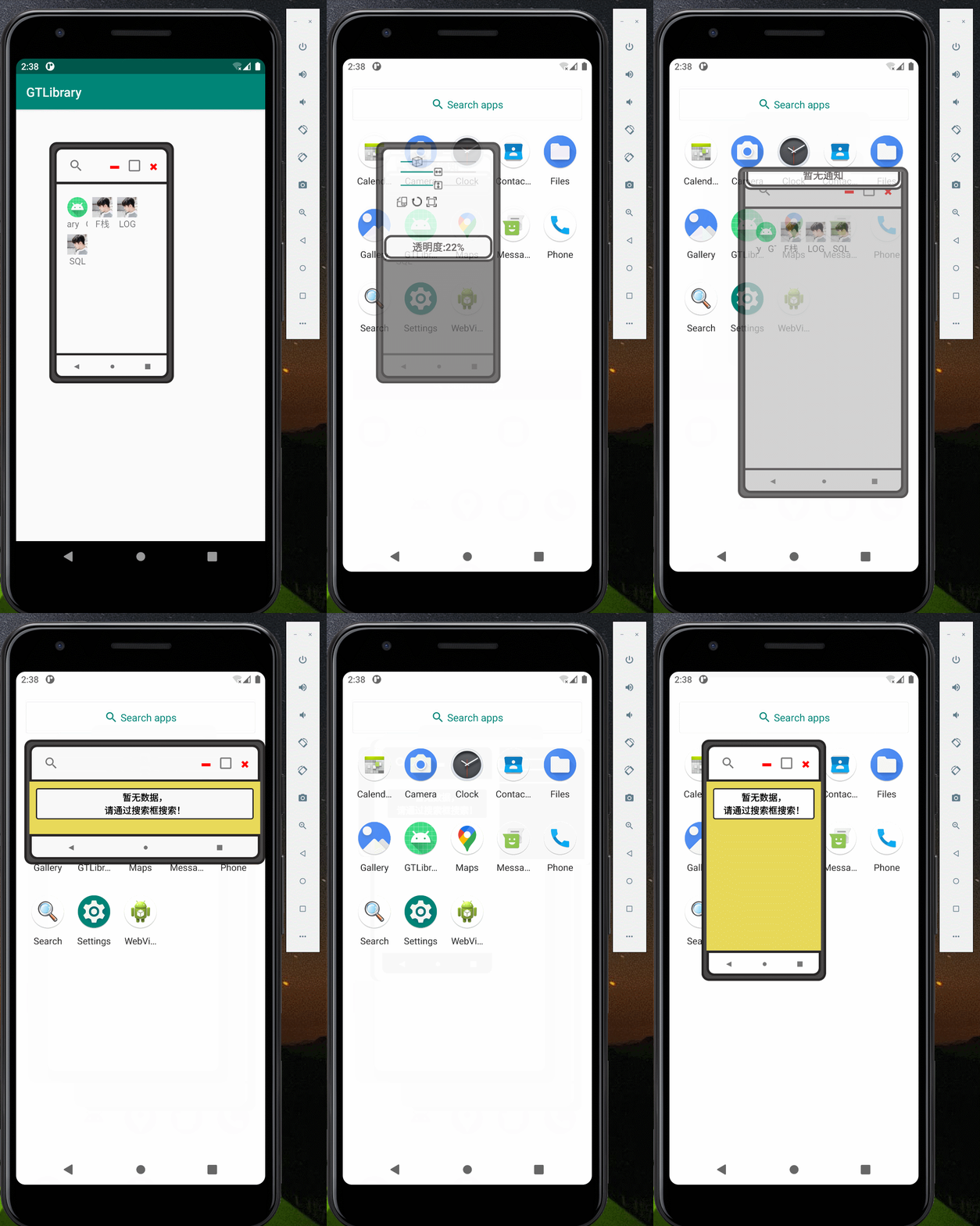
图1 图2 图3
图1只需要31行代码即可完成。
我们来看看这些都是如何实现的
在使用GT库里封装的架构当然需要先依赖好GT库:
详细依赖教程请参看
GitHub - /GTContribute to /GT development by creating an account on GitHub. https://github.com//GT
使用GT 悬浮窗教程
第一步:自定义的xml布局 demo_floating_window
<?xml version="1.0" encoding="utf-8"?> <LinearLayout xmlns:android="http://schemas.android.com/apk/res/android" xmlns:app="http://schemas.android.com/apk/res-auto" android:layout_width="wrap_content" android:layout_height="wrap_content"> <!-- ConstraintLayout 必须要将对话框大小设置出来,解决设置最外层宽高无效的问题 --> <androidx.constraintlayout.widget.ConstraintLayout android:id="@+id/view_bg" android:layout_width="300dp" android:layout_height="200dp" android:background="#5B77D5FF" app:layout_constraintEnd_toEndOf="parent" app:layout_constraintStart_toStartOf="parent" app:layout_constraintTop_toTopOf="parent"> <TextView android:id="@+id/tv_back" android:layout_width="wrap_content" android:layout_height="wrap_content" android:paddingLeft="10dp" android:paddingRight="10dp" android:text="×" android:textColor="#99FFFFFF" android:textSize="28sp" android:textStyle="bold" app:layout_constraintEnd_toEndOf="parent" app:layout_constraintTop_toTopOf="parent" /> <TextView android:id="@+id/tv_data" android:layout_width="wrap_content" android:layout_height="wrap_content" android:background="#8D03B1FF" android:padding="10dp" android:text="简易自定义对话框\n支持返回数据\n支持监听返回键\n用法与 Fragment 毫无差异\n" android:textColor="#A4FFFFFF" android:textStyle="bold" app:layout_constraintBottom_toTopOf="@+id/btn_ok" app:layout_constraintEnd_toEndOf="parent" app:layout_constraintStart_toStartOf="parent" app:layout_constraintTop_toBottomOf="@+id/tv_back" /> <Button android:id="@+id/btn_ok" android:layout_width="wrap_content" android:layout_height="wrap_content" android:text="好的" app:layout_constraintBottom_toBottomOf="parent" app:layout_constraintEnd_toStartOf="@+id/btn_cancel" app:layout_constraintStart_toStartOf="parent" /> <Button android:id="@+id/btn_cancel" android:layout_width="wrap_content" android:layout_height="wrap_content" android:text="取消" app:layout_constraintBottom_toBottomOf="@+id/btn_ok" app:layout_constraintEnd_toEndOf="parent" app:layout_constraintStart_toEndOf="@+id/btn_ok" /> </androidx.constraintlayout.widget.ConstraintLayout> </LinearLayout>讯享网
第二步:加载悬浮窗布局
讯享网//加载布局 @GT.Annotations.GT_AnnotationFloatingWindow(R.layout.demo_floating_window) public class DemoFloatingWindow extends GT.GT_FloatingWindow.AnnotationFloatingWindow { @Override protected void initView(View view) { super.initView(view); setDrag(true);//设置可拖动 } @GT.Annotations.GT_Click({R.id.btn_ok, R.id.tv_back, R.id.btn_cancel}) public void onClick(View view) { switch (view.getId()) { case R.id.btn_ok: GT.toast("单击了ok"); break; case R.id.tv_back: case R.id.btn_cancel: finish();//关闭当前悬浮窗 break; } } }
第三步:使用悬浮窗(这里的布局因为只有一个按钮组件,故不贴出布局了)

public class MainActivity extends AppCompatActivity { @Override protected void onCreate(Bundle savedInstanceState) { super.onCreate(savedInstanceState); setContentView(R.layout.activity_main); findViewById(R.id.btn).setOnClickListener(new View.OnClickListener() { @Override public void onClick(View v) { GT.startFloatingWindow(MainActivity.this, DemoFloatingWindow.class);//启动悬浮窗 } }); } }第四步:添加悬浮窗权限 与 注册写好的悬浮窗 (AndroidManifest.xml)

可直接复制粘贴:
讯享网 <!-- 添加悬浮窗权限 --> <uses-permission android:name="android.permission.SYSTEM_ALERT_WINDOW" /> <!-- 注册写好的悬浮窗 --> <service android:name=".DemoFloatingWindow" android:exported="true"/>
然后就完工,可直接运行了
总结:熟悉GT库的是不是感觉特别熟悉,没错,GT内的Activity、Fragment、DialogFragment、FloatingWindow 的使用方法与结构都是一模一样的,也就是说只要你学会了其中一个,那就等同于其他的你都学会了。
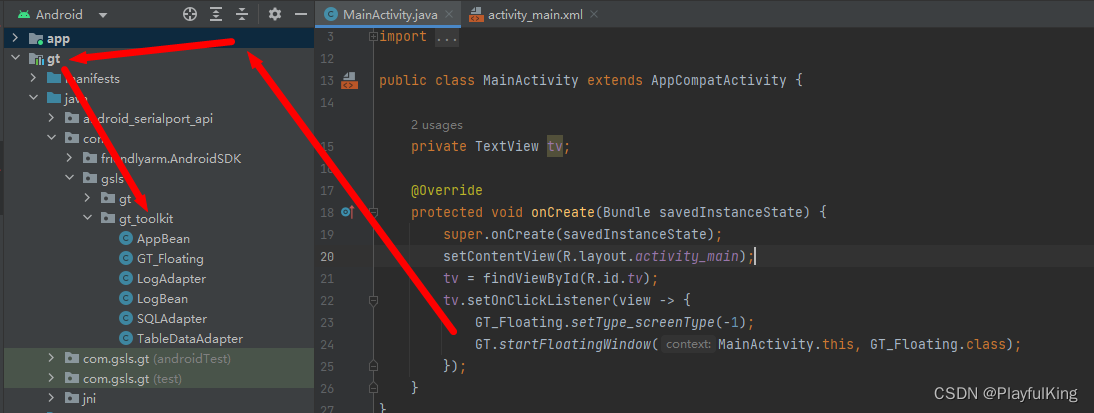
糖豆:如果想要图2、图3的源码,请直接下载最新GT库,GT库中的 util 目录中就是源码。 启动GT模拟手机版悬浮窗的代码如下:
补充API:
补充使用API: setEventPenetration //设置触摸事件是否穿透悬浮窗 setType_screenType //设置悬浮窗布局模式 getWindowManager //获得悬浮窗最原始窗口, setWidth//设置窗口宽度 setHeight//设置窗口高度 setIsShow//设置当前悬浮窗绑定某个Activity setBindingApp//设置将绑定当前APP,如果APP不在前台那就隐藏悬浮窗 setGetFocus//是否获取焦点,获取焦点后才能进行弹出软键盘 updateView(int width, int height)//更新View setDrag//设置悬浮窗可拖动 setLayoutParamsXY//设置悬浮窗累加位置 setXY//设置悬浮窗的位置,注意:此方法需要再 重写loadData() 里进行调用 show//显示通知栏 hide//隐藏通知类 isShow//当前悬浮窗是否显示 finish//销毁悬浮窗 点个关注点个赞呗(〃'▽'〃),关注博主最新发布库:GitHub - /GT
版权声明:本文内容由互联网用户自发贡献,该文观点仅代表作者本人。本站仅提供信息存储空间服务,不拥有所有权,不承担相关法律责任。如发现本站有涉嫌侵权/违法违规的内容,请联系我们,一经查实,本站将立刻删除。
如需转载请保留出处:https://51itzy.com/kjqy/66700.html