
👨💻更多精彩尽在博主首页:i新木优子👀
🎉欢迎关注🔍点赞👍收藏⭐留言📝
🧚♂️寄语:当你将信心放在自己身上时,你将永远充满力量👣
✨有任何疑问欢迎评论探讨
什么是全站数据crawling呢,顾名思义就是将一个网站的全部数据都crawling下来,这里我采用scrapy框架,这里我提供了很多方式,可以挑选自己喜欢的玩一玩
接下来有请我们的幸运儿:不能说的网站名,我怕不过审🚗

讯享网
0️⃣1️⃣
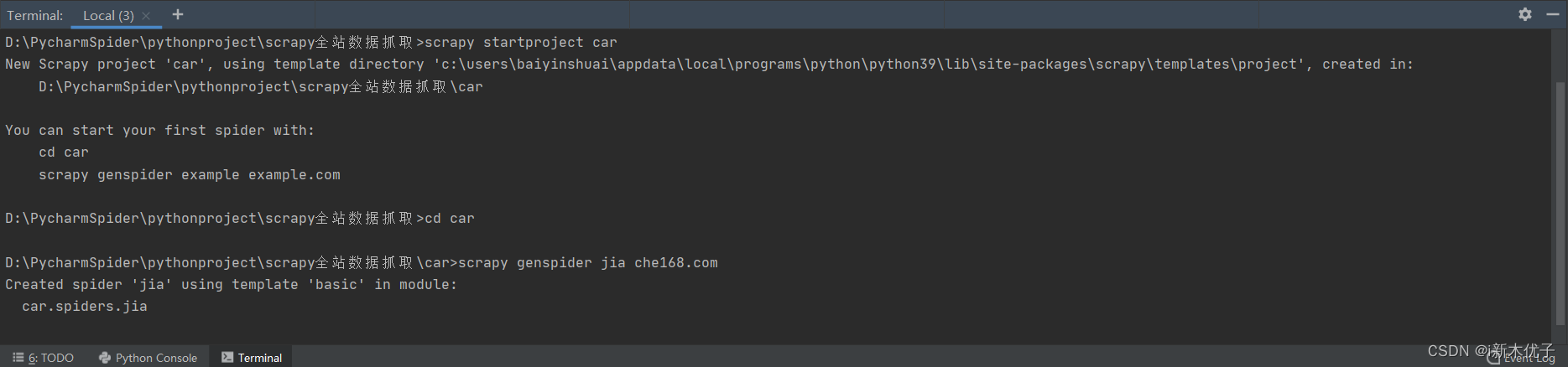
创建scrapy项目scrapy startproject 文件名 cd 文件名 scrapy genspider 名称 要crawling网站的域名
讯享网
0️⃣2️⃣更改settings配置文件讯享网USER_AGENT ---------->设置UA ROBOTSTXT_OBEY ---------->君子协议(我们爬虫当然不会遵守啦😎) LOG_LEVEL ---------->日志等级(建议设置为WARNING)
❗❗❗一定要记得设置·DOWNLOAD_DELAY·限制访问频率
因为scrapy的底层是协程,速度非常快,如果不设置可能用不了几分钟就会弹出安全验证无法抓取网页。有些网站如果不设置,抓取的数据量够多几分钟就会把网站跑die了,毕竟我们是善良的spider,不要破坏网站哦😄


首先,我们进入网页按键盘上的
F12进入开发者模式,在Elements中做参考,Elements可以做参考不能作为依据,因为Elements是经过css和js渲染之后形成的,作为依据的只能是页面源代码(Sources)。可以观察到每一个li标签就是一条数据(这里我们先不考虑分页,先抓取一页的数据,一页搞定了分页就很简单了)
我们要是只抓取首页上的数据就很没意思,更多的是想点击进入详情页,抓取详情页中的数据,详情页的数据才更全面
0️⃣3️⃣解析首页数据拿到详情页的url
li_list = resp.xpath("//ul[@class='viewlist_ul']/li") # 拿到每一个li for li in li_list: href = li.xpath("./a/@href").extract_first() print(href) 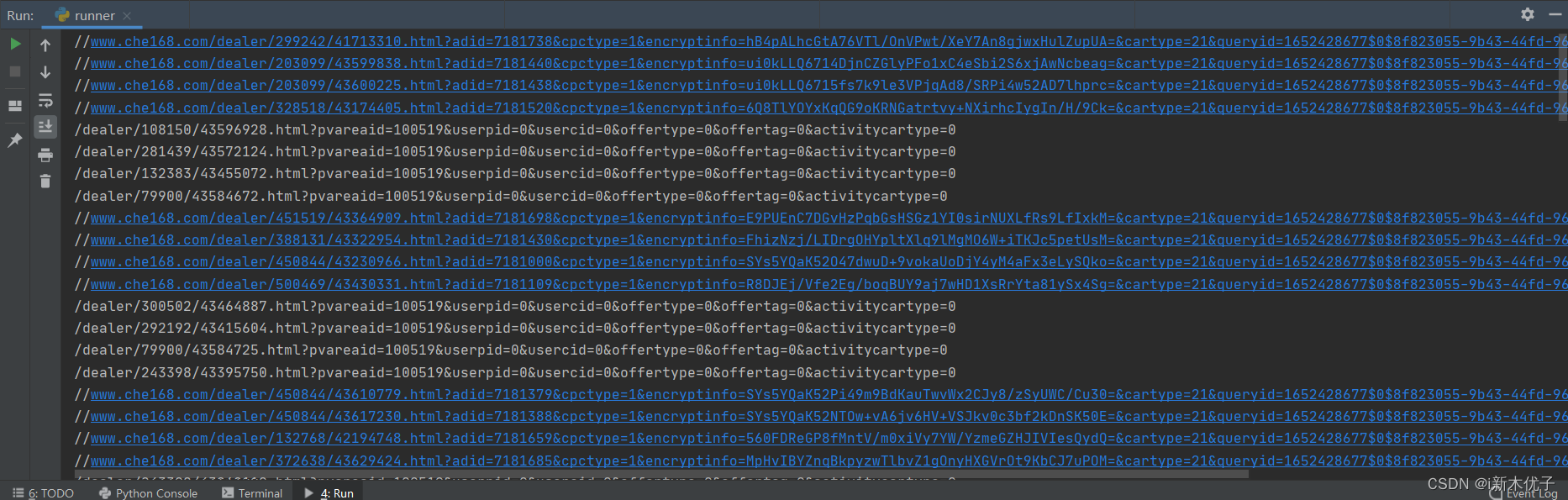
0️⃣4️⃣拿到的url如上图,发现这并不是我们想要的url它不完整,所以我们要将href进行拼接,得到真正的url
讯享网href = resp.urljoin(href)
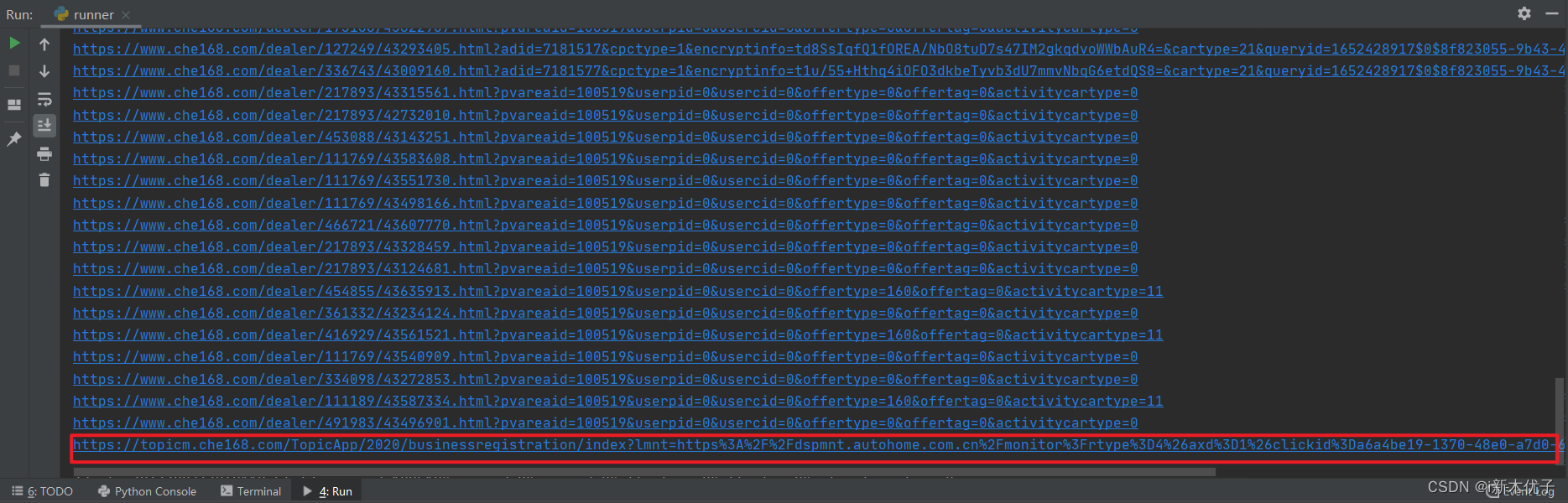
0️⃣5️⃣这样我们就拿到了真正的url,仔细观察发现最后一条数据并不是我们想要的(最后一条url是广告),加一个if判断就可以个将没用的url去除
if "topicm" in href: continue 0️⃣6️⃣到此为止,我们拿到了每一条详情页的url,只需再一次发送请求进入详情页,解析详情页拿到我们要的数据即可
⚠⚠⚠
我们的目的是为了实现全站数据crawling,数据量是非常大的,所以我们要提前预估风险,就像上图中的数据可能某一条或某几条会缺失,这就涉及到缺省值的处理
0️⃣7️⃣💎缺省值的处理:
- 方式一:
可以用if条件判断,通过判断小标题拿对应的内容(这种比较麻烦,数据越多难度越大)- 方式二(推荐):
自己定义一种数据结构作为映射(简便且数据规整)
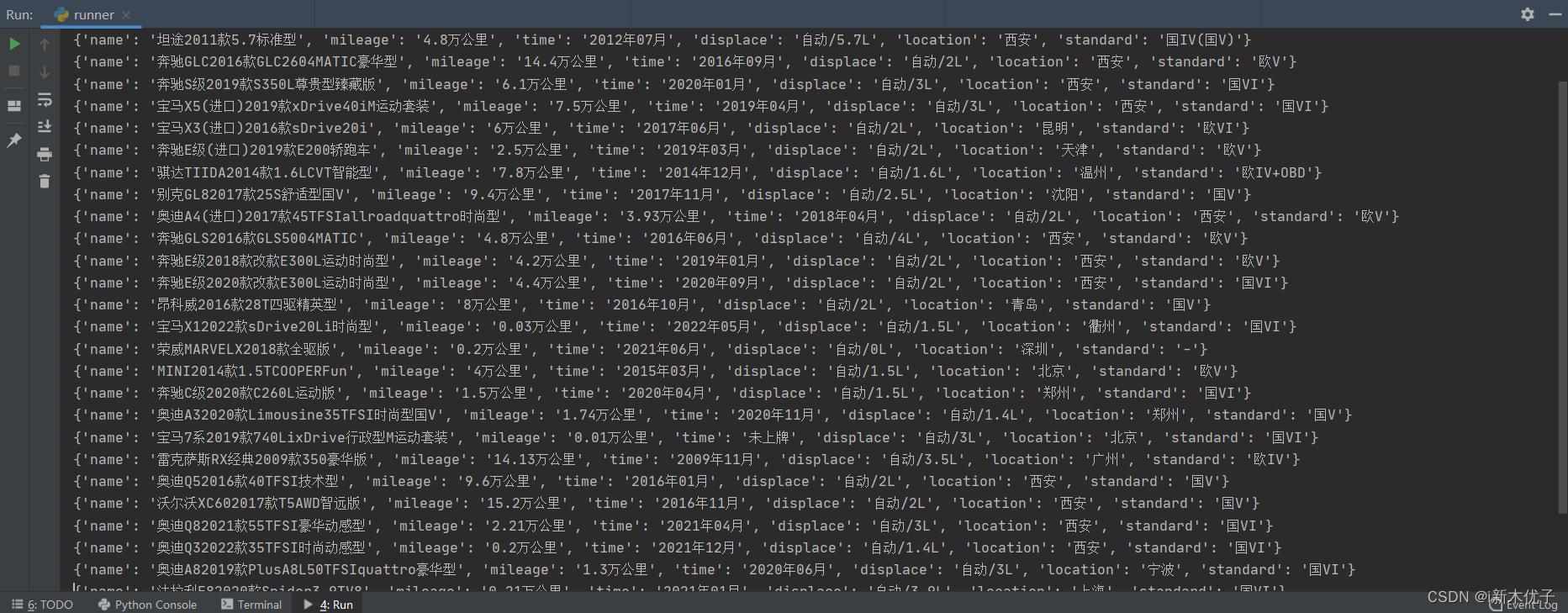
代码和运行图片如下:
讯享网car_tag = {
     "表显里程": "mileage", "上牌时间": "time", "挡位/排量": "displace", "车辆所在地": "location", "查看限迁地": "standard" } # 映射 dic = {
     'name': '未知', 'mileage': '0公里', 'time': '未知', 'displace': '未知', 'location': '未知', 'standard': '未知' } # 承载最终的数据 name = resp.xpath("//div[@class='car-box']/h3/text()").extract_first().strip().replace(" ", "") dic["name"] = name lis = resp.xpath("//div[@class='car-box']/ul/li") for li in lis: p_name = li.xpath("./p//text()").extract_first() p_value = li.xpath("./h4/text()").extract_first() p_name = p_name.replace(" ", "").strip() p_value = p_value.replace(" ", "").strip() data_key = self.car_tag[p_name] dic[data_key] = p_value print(dic)
0️⃣8️⃣一页的数据拿到了,接下来就是分页这里我也提供两种方式:
- 方式一:
仔细的观察网址:
https://www.che168.com/china/a0_0msdgscncgpi1ltocsp1exx0/?pvareaid=#currengpostion
https://www.che168.com/china/a0_0msdgscncgpi1ltocsp2exx0/?pvareaid=#currengpostion
https://www.che168.com/china/a0_0msdgscncgpi1ltocsp3exx0/?pvareaid=#currengpostion
只要我们将数字依次替换就可以实现翻页
我们只需要写一个for循环就可以搞定哦🐍- 方式二:
方式一是最基本的翻页逻辑,但是我们用的是scrapy,scrapy有自己的方式
只需要拿到翻页的url发送请求即可实现翻页(这里不需要担心有重复的url,scrapy框架中有一个调度器(scheduler)会自动的帮助我们实现去重,这样就可以将100页的数据全部抓取到)hrefs = resp.xpath("//div[@id='listpagination']/a/@href").extract() for href in hrefs: if href.startswith("javascript"): continue href = resp.urljoin(href) yield scrapy.Request( url=href, callback=self.parse )
0️⃣9️⃣
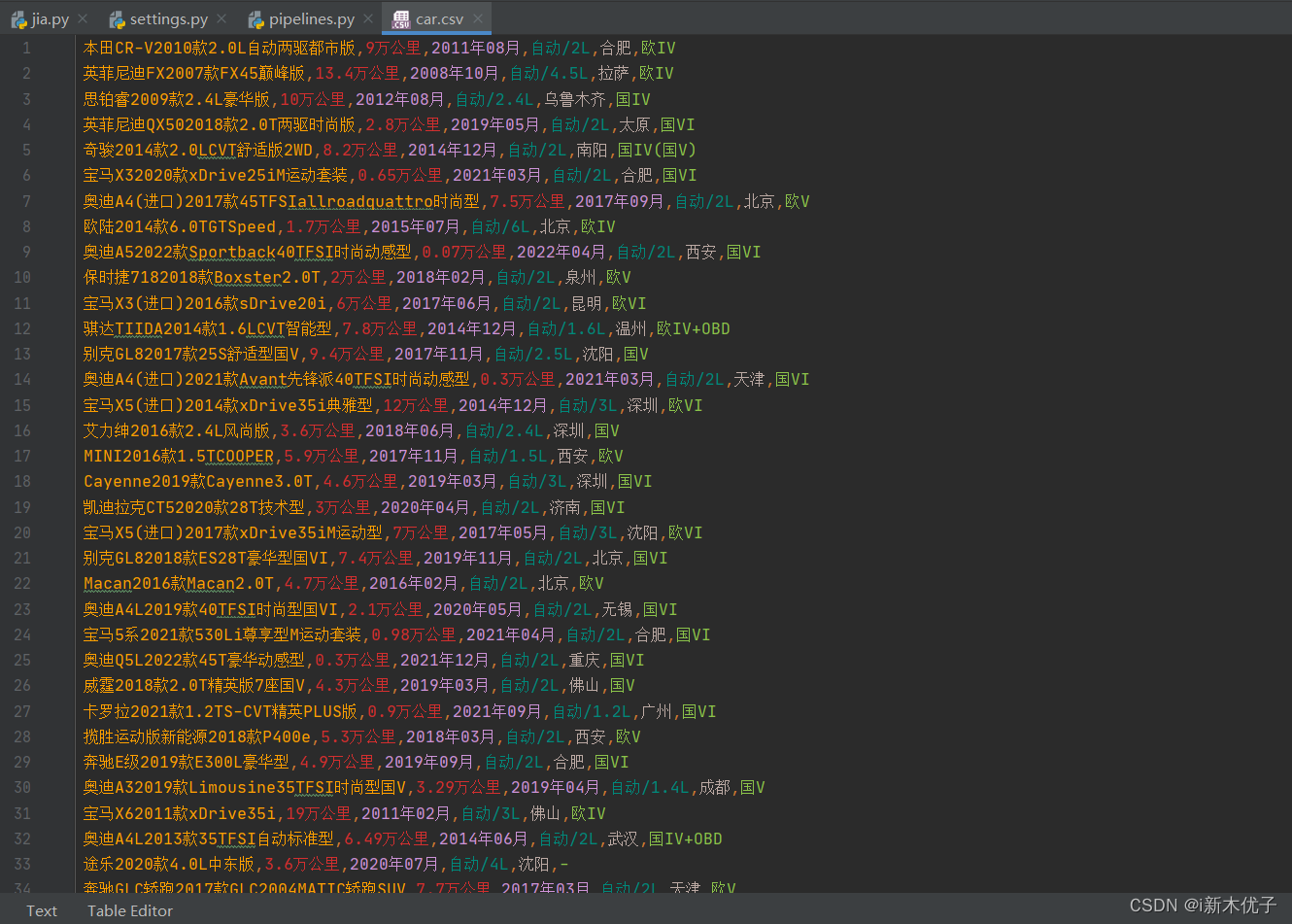
数据全部crawling到了,就剩下存储了
存储之前一定要记得在配置文件中打开管道
存储数据就要在管道(pipeline)中写代码,这里我选择存储在csv文件,当然也可以选择Mysql、MongoDB等等讯享网def open_spider(self, spider_name): self.f = open("car.csv", mode="w", encoding="utf-8") def close_spider(self, spider_name): self.f.close() def process_item(self, item, spider): print(item) self.f.write(f"{ item['name']},{ item['mileage']},{ item['time']},{ item['displace']},{ item['location']},{ item['standard']}\n") return item
只要程序一直跑下去就可以将数据全部获取到,只需耐心等待即可(全站数据crawling的时间可能很长),这样我们就实现了全站数据crawling,是不是很简单呢😼


1️⃣0️⃣接下来就是小伙伴们最喜欢的源代码环节😀
jia.py
import scrapy class JiaSpider(scrapy.Spider): name = 'jia' allowed_domains = ['che168.com'] start_urls = ['https://www.che168.com/china/a0_0msdgscncgpi1ltocsp1exx0/'] car_tag = {
    "表显里程": "mileage", "上牌时间": "time", "挡位/排量": "displace", "车辆所在地": "location", "查看限迁地": "standard" } def parse(self, resp, kwargs): # print(resp.url) li_list = resp.xpath("//ul[@class='viewlist_ul']/li") # 拿到每一个li for li in li_list: href = li.xpath("./a/@href").extract_first() href = resp.urljoin(href) if "topicm" in href: continue # print(href) yield scrapy.Request( url=href, callback=self.parse_detail ) # 分页 hrefs = resp.xpath("//div[@id='listpagination']/a/@href").extract() for href in hrefs: if href.startswith("javascript"): continue href = resp.urljoin(href) yield scrapy.Request( url=href, callback=self.parse ) def parse_detail(self, resp, kwargs): dic = {
    'name': '未知', 'mileage': '0公里', 'time': '未知', 'displace': '未知', 'location': '未知', 'standard': '未知' } # 最终的数据 name = resp.xpath("//div[@class='car-box']/h3/text()").extract_first().strip().replace(" ", "") dic["name"] = name lis = resp.xpath("//div[@class='car-box']/ul/li") for li in lis: p_name = li.xpath("./p//text()").extract_first() p_value = li.xpath("./h4/text()").extract_first() p_name = p_name.replace(" ", "").strip() p_value = p_value.replace(" ", "").strip() data_key = self.car_tag[p_name] dic[data_key] = p_value yield dic
settings.py
讯享网# Scrapy settings for car project # # For simplicity, this file contains only settings considered important or # commonly used. You can find more settings consulting the documentation: # # https://docs.scrapy.org/en/latest/topics/settings.html # https://docs.scrapy.org/en/latest/topics/downloader-middleware.html # https://docs.scrapy.org/en/latest/topics/spider-middleware.html BOT_NAME = 'car' SPIDER_MODULES = ['car.spiders'] NEWSPIDER_MODULE = 'car.spiders' # Crawl responsibly by identifying yourself (and your website) on the user-agent USER_AGENT = 'Mozilla/5.0 (Windows NT 10.0; Win64; x64) AppleWebKit/537.36 (KHTML, like Gecko) Chrome/101.0.4951.64 Safari/537.36' # Obey robots.txt rules ROBOTSTXT_OBEY = False LOG_LEVEL = "WARNING" # Configure maximum concurrent requests performed by Scrapy (default: 16) # CONCURRENT_REQUESTS = 32 # Configure a delay for requests for the same website (default: 0) # See https://docs.scrapy.org/en/latest/topics/settings.html#download-delay # See also autothrottle settings and docs DOWNLOAD_DELAY = 3 # The download delay setting will honor only one of: # CONCURRENT_REQUESTS_PER_DOMAIN = 16 # CONCURRENT_REQUESTS_PER_IP = 16 # Disable cookies (enabled by default) COOKIES_ENABLED = False # Disable Telnet Console (enabled by default) # TELNETCONSOLE_ENABLED = False # Override the default request headers: DEFAULT_REQUEST_HEADERS = {
    'Accept': 'text/html,application/xhtml+xml,application/xml;q=0.9,*/*;q=0.8', 'Accept-Language': 'en', "Cookie": "listuserarea=0; fvlid=16u4Xrt5cvwi40; Hm_lvt_d381ec2fb9b76f14c497ed48=; sessionid=8f-9b43-44fd-96a7-6ebeaabb8c5f; sessionip=39.154.171.103; area=; sessionvisit=0ac66484-306b-41b1-a2b1-caae86be6f16; sessionvisitInfo=8f-9b43-44fd-96a7-6ebeaabb8c5f||0; che_sessionid=1CC9EB24-B4F9-4B9D-B2F7-389ED89C1BB9%7C%7C2022-05-13+15%3A25%3A20.567%7C%7C0; che_sessionvid=FA-76D5-4F08-B102-914CDFD4E4F6; userarea=; UsedCarBrowseHistory=0%3A; carDownPrice=1; ahpvno=3; Hm_lpvt_d381ec2fb9b76f14c497ed48=; ahuuid=3EC672D4-DFF9-4DA7-956D-F9D7A2B89915; v_no=3; visit_info_ad=1CC9EB24-B4F9-4B9D-B2F7-389ED89C1BB9||FA-76D5-4F08-B102-914CDFD4E4F6||-1||-1||3; che_ref=0%7C0%7C0%7C0%7C2022-05-13+15%3A36%3A45.754%7C2022-05-13+15%3A25%3A20.567; showNum=3; sessionuid=8f-9b43-44fd-96a7-6ebeaabb8c5f" } # Enable or disable spider middlewares # See https://docs.scrapy.org/en/latest/topics/spider-middleware.html # SPIDER_MIDDLEWARES = {
    # 'car.middlewares.CarSpiderMiddleware': 543, # } # Enable or disable downloader middlewares # See https://docs.scrapy.org/en/latest/topics/downloader-middleware.html # DOWNLOADER_MIDDLEWARES = {
    # 'car.middlewares.CarDownloaderMiddleware': 543, # } # Enable or disable extensions # See https://docs.scrapy.org/en/latest/topics/extensions.html # EXTENSIONS = {
    # 'scrapy.extensions.telnet.TelnetConsole': None, # } # Configure item pipelines # See https://docs.scrapy.org/en/latest/topics/item-pipeline.html ITEM_PIPELINES = {
    'car.pipelines.CarPipeline': 300, } # Enable and configure the AutoThrottle extension (disabled by default) # See https://docs.scrapy.org/en/latest/topics/autothrottle.html # AUTOTHROTTLE_ENABLED = True # The initial download delay # AUTOTHROTTLE_START_DELAY = 5 # The maximum download delay to be set in case of high latencies # AUTOTHROTTLE_MAX_DELAY = 60 # The average number of requests Scrapy should be sending in parallel to # each remote server # AUTOTHROTTLE_TARGET_CONCURRENCY = 1.0 # Enable showing throttling stats for every response received: # AUTOTHROTTLE_DEBUG = False # Enable and configure HTTP caching (disabled by default) # See https://docs.scrapy.org/en/latest/topics/downloader-middleware.html#httpcache-middleware-settings # HTTPCACHE_ENABLED = True # HTTPCACHE_EXPIRATION_SECS = 0 # HTTPCACHE_DIR = 'httpcache' # HTTPCACHE_IGNORE_HTTP_CODES = [] # HTTPCACHE_STORAGE = 'scrapy.extensions.httpcache.FilesystemCacheStorage'
pipelines.py
# Define your item pipelines here # # Don't forget to add your pipeline to the ITEM_PIPELINES setting # See: https://docs.scrapy.org/en/latest/topics/item-pipeline.html # useful for handling different item types with a single interface from itemadapter import ItemAdapter class CarPipeline: def open_spider(self, spider_name): self.f = open("car.csv", mode="w", encoding="utf-8") def close_spider(self, spider_name): self.f.close() def process_item(self, item, spider): print(item) self.f.write(f"{
     item['name']},{
     item['mileage']},{
     item['time']},{
     item['displace']},{
     item['location']},{
     item['standard']}\n") return item
runner.py
讯享网from scrapy.cmdline import execute if __name__ == '__main__': execute("scrapy crawl jia".split())
上面的只是一种方式,除此之外,还有一种方式简单粗暴的方式也可以实现全站数据crawling
只抓一个倒霉蛋往die里搞,终究太过于残忍😃,下面有请第二个倒霉蛋:某诗词网站📚
创建CrawlSpider项目scrapy startproject 文件名 cd 文件名 scrapy genspider -t crawl 名称 要爬取网站的域名
配置文件还和之前一样
这个网站和上述网站的结构一模一样,也需要进入到详情页crawling数据,并且分页我们知道我们在网页上点击的都是超链接,那我们只要能拿到每一个超链接,就可以实现页面数据的crawling,所以CrawlSpider就为我们准备好了链接提取器
🐲让我们以代码为例,讲一下链接提取器是怎么工作的:
讯享网from scrapy.linkextractors import LinkExtractor # 导入链接提取器 from scrapy.spiders import CrawlSpider, Rule class TangSpider(CrawlSpider): name = 'tang' # 名称 allowed_domains = ['shicimingjv.com'] # 域名 start_urls = ['https://www.shicimingjv.com/tangshi/index_1.html'] # 首页的网址 # lk1 = LinkExtractor() 表示造一个链接提取器,括号中的表示提取规则,下图有源码的详细说明 # 详情页的url地址 lk1 = LinkExtractor(restrict_xpaths="//div[@class='sec-panel-body']/ul/li/div[1]/h3/a") # 分页的url地址 lk2 = LinkExtractor(restrict_xpaths="//ul[@class='pagination']/li/a") rules = ( Rule(lk1, callback='parse_item'), # callback表示请求回来要执行的函数 Rule(lk2, follow=True), # follow=True表示是否要重新执行一次rules ) def parse_item(self, response): # 解析详情页的内容 title = response.xpath("//h1[@class='mp3']/text()").extract_first() print(title)
通过对比之前的全站提取方式,我们可以发现CrawlSpider就是省略了parse这个函数,因为CrawlSpider是高度分装的,所以他的灵活性不如之前的高
🏆让我们进入
LinkExtractor源码中一探究竟,看看提取器的提取方式是什么样子的
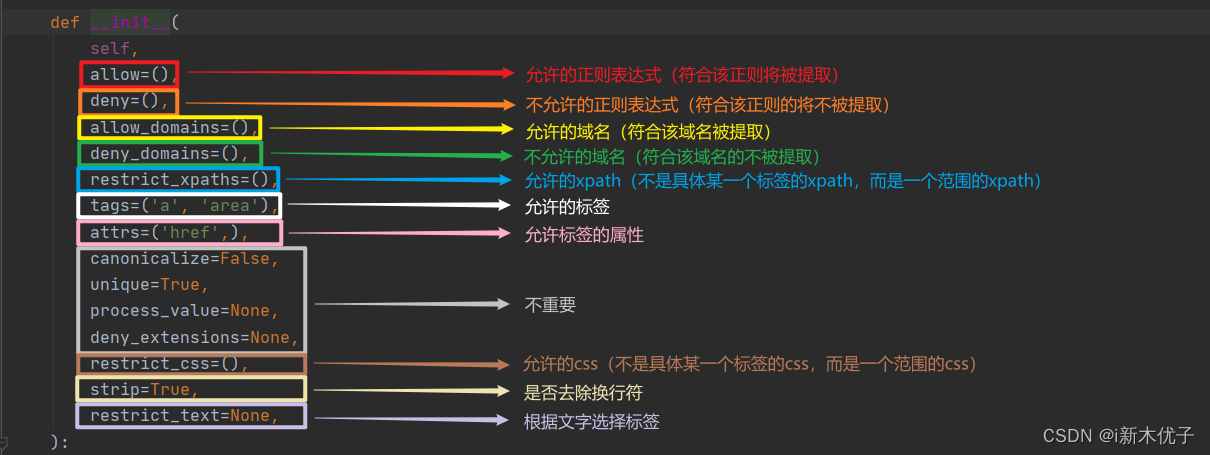
只要是页面上的链接,用连接提取器都能提取到,找到对应的链接发送请求进行解析,就可以实现真正的全站数据crawling
这些小伙伴们都可以自由发挥,切记不要太过分,把人家网站往die里搞,毕竟我们是抱着学习的目的去的,做善良的spider
讲到最后,有些小伙伴可能不会运行scrapy,这里我们说两种方式:
- 方式一:
进入terminal输入scrapy crawl 名称- 方式二(推荐):
建一个py文件runner,右击即可运行from scrapy.cmdline import execute if __name__ == '__main__': execute("scrapy crawl 名称".split())
🙏因审核的原因,有些细节没有办法说明,做了很多的删减,望谅解
版权声明:本文内容由互联网用户自发贡献,该文观点仅代表作者本人。本站仅提供信息存储空间服务,不拥有所有权,不承担相关法律责任。如发现本站有涉嫌侵权/违法违规的内容,请联系我们,一经查实,本站将立刻删除。
如需转载请保留出处:https://51itzy.com/kjqy/38018.html