
你可以在 ChatGPT 网页版的 Codex 设置中查看积分余额和使用情况,也可通过终端命令 /status 查询。
- 登录 ChatGPT 网页版。
- 进入 Codex 设置。
- 打开设置-分析,即可查看当前积分余额、最近使用情况以及 5 小时和每周的使用限额。
- 官方查询网站 https://chatgpt.com/codex/cloud/settings/analytics
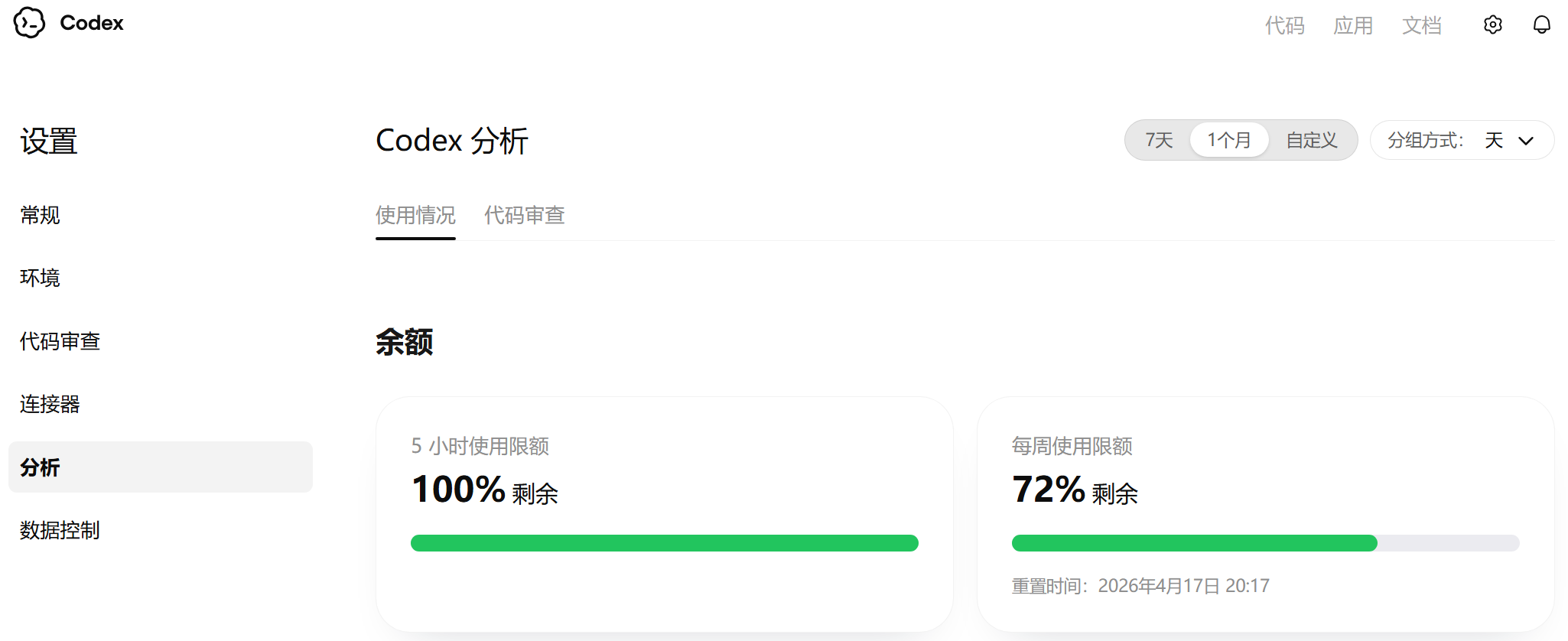
2. 系统会返回你的 5小时限额、每周限额及重置时间。
GPT公司会根据算力和用户请求动态规划Token额度,大概的额度量如下:
1. 在 Claude Code Web/IDE 插件中使用,通常在右上角或设置(Settings)里会显示剩余用量或 Billing/Usage
2. 登录 Claude 账号 → 进入 Account / Usage 页面 → 查看当前周期的剩余额度
1. claude-code-usage-monitor
GitHub:https://github.com/Maciek-roboblog/Claude-Code-Usage-Monitor
多种安装下载方式:
从PyPI下载:
(未下载uv)
# On Linux/macOS: curl -LsSf https://astral.sh/uv/install.sh | shOn Windows:
powershell -ExecutionPolicy ByPass -c “irm https://astral.sh/uv/install.ps1 | iex”
After installation, restart your terminal
(工具下载)
# Install directly from PyPI with uv (easiest) uv tool install claude-monitorRun from anywhere
claude-monitor # or cmonitor, ccmonitor for short
从源下载:
# Clone and install from source git clone https://github.com/Maciek-roboblog/Claude-Code-Usage-Monitor.git cd Claude-Code-Usage-Monitor uv tool install .Run from anywhere
claude-monitor
pip下载:
# Install from PyPI pip install claude-monitorIf claude-monitor command is not found, add ~/.local/bin to PATH:
echo ‘export PATH=“\(HOME/.local/bin:\)PATH”’ >> ~/.bashrc source ~/.bashrc # or restart your terminal
Run from anywhere
claude-monitor # or cmonitor, ccmonitor for short
2. glm-quota-line
Github: https://github.com/deluo/glm-quota-line
能在 Claude Code 终端底部实时显示 GLM Coding Plan 的剩余额度,无需切换窗口
npm install -g glm-quota-line glm-quota-line install安装完成后,Claude Code 底部状态栏会自动显示配额:
GLM Lite █████████░ 91% | W 47% | 14:47
也可以直接在终端运行 glm-quota-line 快速查看用量,无需启动 Claude Code。
版权声明:本文内容由互联网用户自发贡献,该文观点仅代表作者本人。本站仅提供信息存储空间服务,不拥有所有权,不承担相关法律责任。如发现本站有涉嫌侵权/违法违规的内容,请联系我们,一经查实,本站将立刻删除。
如需转载请保留出处:https://51itzy.com/kjqy/266643.html