
stagewise 是一款面向前端开发者的浏览器工具栏
- 能够捕捉网页UI 元素、DOM 路径和元数据等信息
- 能够通过对话框与Agent(比如Cursor)对话,将修改意见通知给Cursor
最终实现对页面的微调。
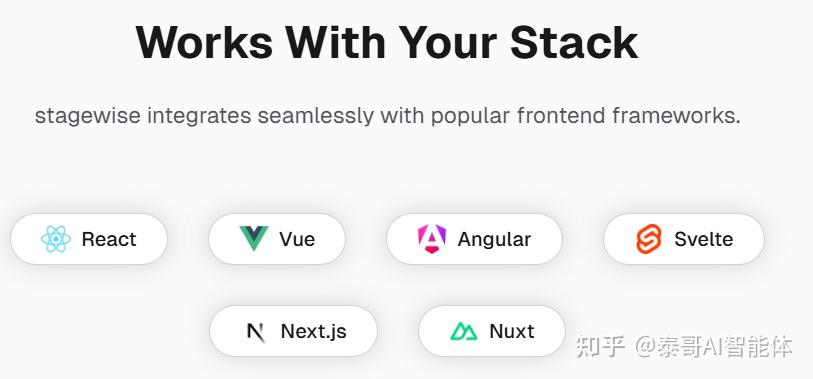
stagewise目前只支持React、Next.js、Vue、Nuxt,Angular,Svelte这几个主流框架,所以这里的前端项目得是这几个主流框架的。
Git地址:https://github.com/stagewise-io/stagewise.git
官网:https://stagewise.io/
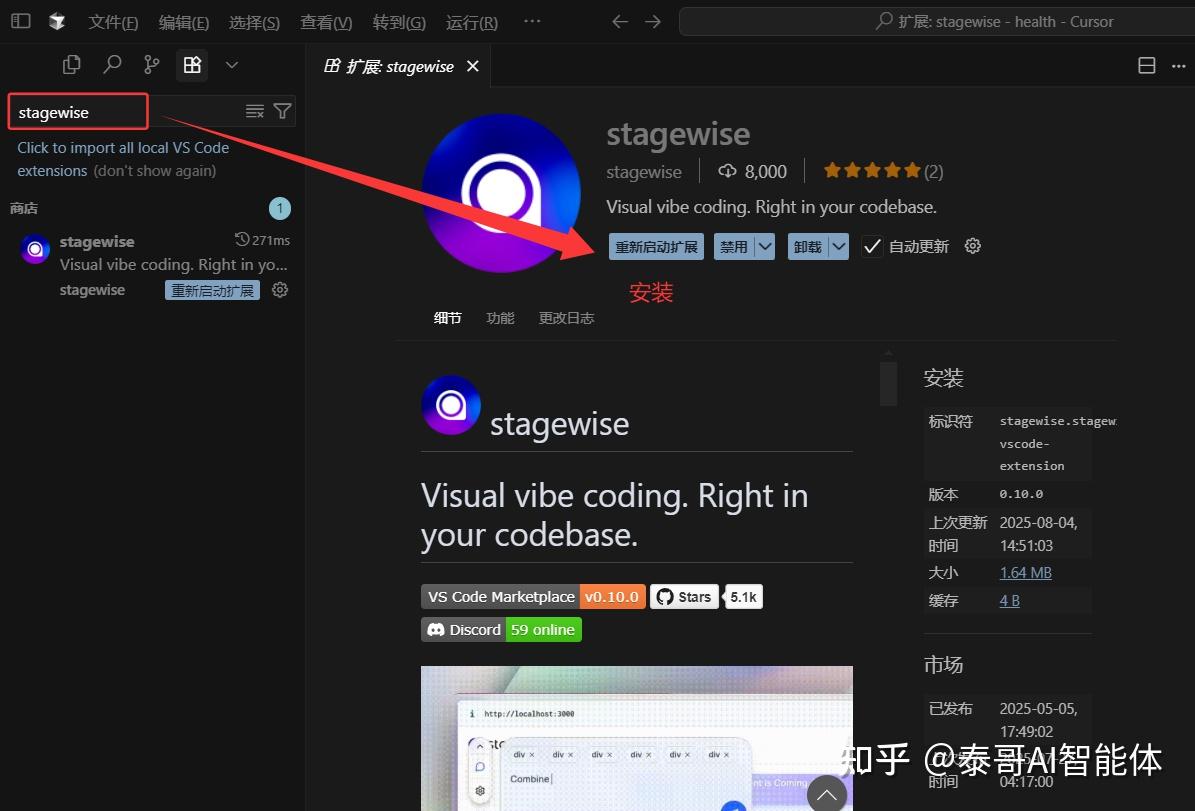
cursor的应用市场中搜索stagewise,点击安装,如果你已经安装、直接跳过这一步。
1、打开Cursor命令面板
- Windows用户:按 Ctrl+Shift+P
- Mac用户:按 Cmd+Shift+P
2、执行集成命令
- 在命令面板中输入
setupToolbar - 选择 “Stagewise” 选项
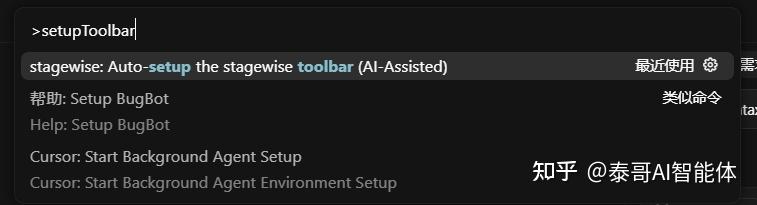
选择后:Chat对话框将会出现提示词
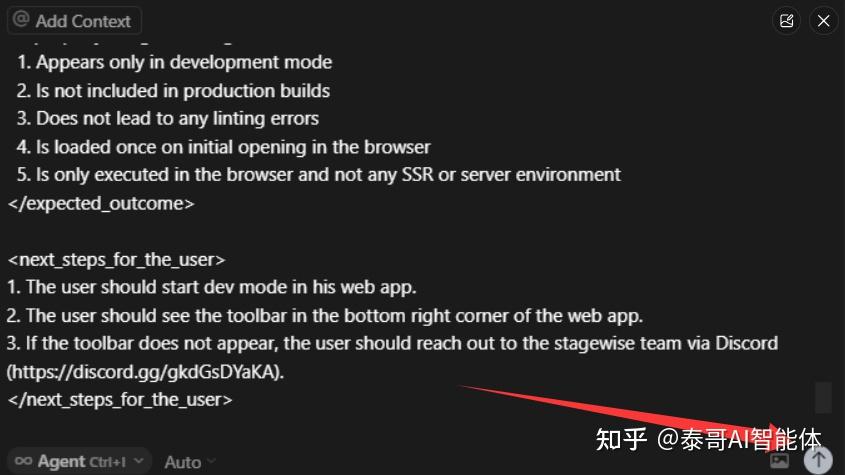
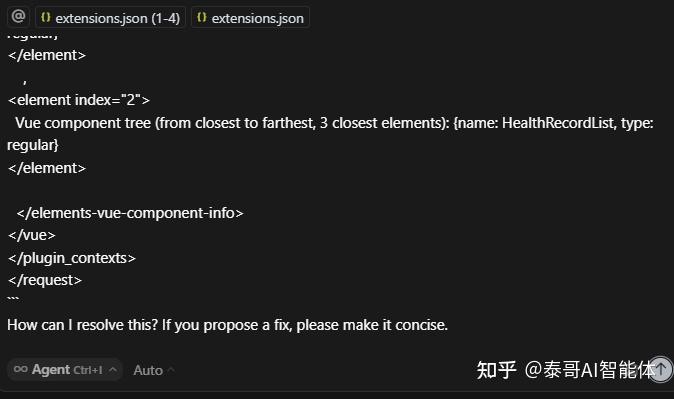
For the code present, we get this error:Ah, sorry, it wasn't an error. The user has submitted a change request. Here is the request, please implement it:
- Install the required stagewise package(s) for the project‘s framework
- Integrate the stagewise toolbar into the project structure (ensure it only runs in development mode)
- Add the stagewise extension to the active repositories recommended extensions list. If the list does not yet exist, cretae a new one.
Identify the project's package manager (npm, yarn, pnpm, etc.). You must use the same package manager to install the stagewise package.
Identify, if the repository only contains one web app project or multiple. If multiple projects are located inside the repository, ask the user to which project the toolbar should be installed to.
Identify, if the specific project already uses a stagewise package. If so, ask the user if they want to use the existing package or replace it with a new one.
If the project already included stagewise, chek for correct integration and do changes if necessary. If the project does not include stagewise, install the appropriate stagewise package and follow the framework specific steps. If there is no description on how to install stagewise for the used framework, reject the users request and say that the user needs to install the stagewise package manually.
Use the `@stagewise/toolbar-react` package for integration. Also, install and use the `@stagewise-plugins/react` package for react specific functionality. Include the StagewiseToolbar component (exported by the `@stagewise/toolbar-react` package) inside the top-most component of the app. Set the `config` prop to an object with the plugins array containing the `ReactPlugin` (default exported by the `@stagewise-plugins/react` package). Note: The `@stagewise/toolbar-react` package already handles rendering the toolbar only in development mode. The "enabled" prop can be overriden with custom logic to conditionally load the toolbar.
Use the `@stagewise/toolbar-next` package for integration. Also, install and use the `@stagewise-plugins/react` package for react specific functionality. Include the StagewiseToolbar component in the root layout file (layout.tsx). Set the `config` prop to an object with the plugins array containing the `ReactPlugin` (default exported by the `@stagewise-plugins/react` package). Note: The `@stagewise/toolbar-next` package already handles opt-out of SSR so that a simple integration of the component is enough. Note: The `@stagewise/toolbar-next` package already handles rendering the toolbar only in development mode. The "enabled" prop can be overriden with custom logic to conditionally load the toolbar.
Use the `@stagewise/toolbar-vue` package for integration. Also, install and use the `@stagewise-plugins/vue` package for vue specific functionality. Add the StagewiseToolbar component to the main App component. Set the `config` prop to an object with the plugins array containing the `VuePlugin` (default exported by the `@stagewise-plugins/vue` package).
Use the `@stagewise/toolbar-nuxt` package for integration. Also, install and use the `@stagewise-plugins/vue` package for vue specific functionality. Wrap the StagewiseToolbar component in a ClientOnly component to ensure it only renders on the client side. Set the `config` prop to an object with the plugins array containing the `VuePlugin` (default exported by the `@stagewise-plugins/vue` package).
Use the `@stagewise/toolbar` package for integration. If the project is using SvelteKit, put the following code into the `hooks.client.ts` file: ts import { initToolbar } from '@stagewise/toolbar'; export function init() { // Keep other functionality that may already exist in the file // Just add the below initToolbar call (conditionally, depending if a dev mode is detected) // If the users uses other existing metrics to check for dev mode, use that instead of import.meta.env.DEV if (import.meta.env.DEV) { initToolbar({ plugins: [], }); } } If the project is using Svelte without SvelteKit, put the following code into the `main.ts` file (or any other file that is the entry to the app): ts import { initToolbar } from '@stagewise/toolbar'; initToolbar({ plugins: [], });
Use the plain `@stagewise/toolbar` package for integration. Import the { initToolbar } function from the `@stagewise/toolbar` package. Call the initToolbar function without any arguments in the entry point of the app (e.g. main.ts, app.ts, etc.). Note: The `@stagewise/toolbar` package does NOT handle rendering the toolbar only in development mode. You need to implement this: ts import { initToolbar } from '@stagewise/toolbar'; if (import.meta.env.DEV) { // or any other way to check for dev mode initToolbar(); }
Use the plain `@stagewise/toolbar` package for integration. Import the { initToolbar } function from the `@stagewise/toolbar` package and call it without any arguments in the entry point of the app (e.g. main.ts, app.ts, etc.). Note: The `@stagewise/toolbar` package does NOT handle rendering the toolbar only in development mode. You need to implement this: ts import { initToolbar } from '@stagewise/toolbar'; if (import.meta.env.DEV) { // or any other way to check for dev mode initToolbar(); }
{ "recommendations": ["dbaeumer.vscode-eslint", "esbenp.prettier-vscode"] }
Make sure, that the stagewise extension is added to the recommended extensions list if it is not already present. The name of the extension is "stagewise.stagewise-vscode-extension". If the list does not yet exist, create a new one with the following content:


      { "recommendations": ["stagewise.stagewise-vscode-extension"] }
- Appears only in development mode
- Is not included in production builds
- Does not lead to any linting errors
- Is loaded once on initial opening in the browser
- Is only executed in the browser and not any SSR or server environment
- The user should start dev mode in his web app.
- The user should see the toolbar in the bottom right corner of the web app.
- If the toolbar does not appear, the user should reach out to the stagewise team via Discord (https://discord.gg/gkdGsDYaKA).
”` How can I resolve this? If you propose a fix, please make it concise.
发送提示词后,Cursor进行分析,一般会根据目前的项目类型(以vue为例),安装必要的包
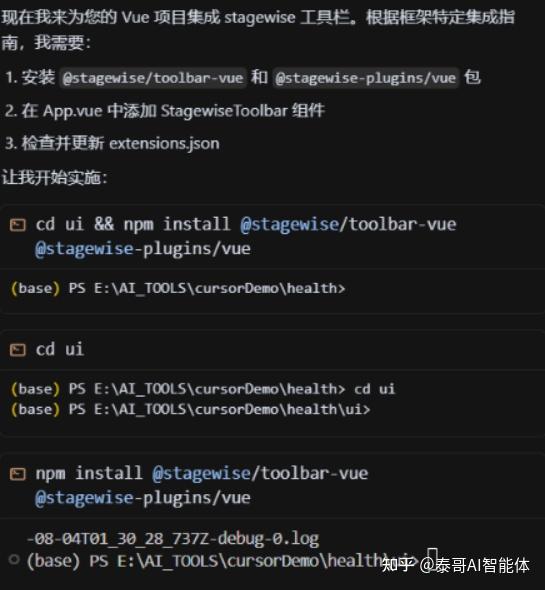
安装命令:
npm install @stagewise/toolbar-vue @stagewise-plugins/vue
安装两个依赖,一个插件,一个工具栏
如果出现错误:也可以试着用下面的命令
yarn install @stagewise/toolbar-vue@stagewise-plugins/vue
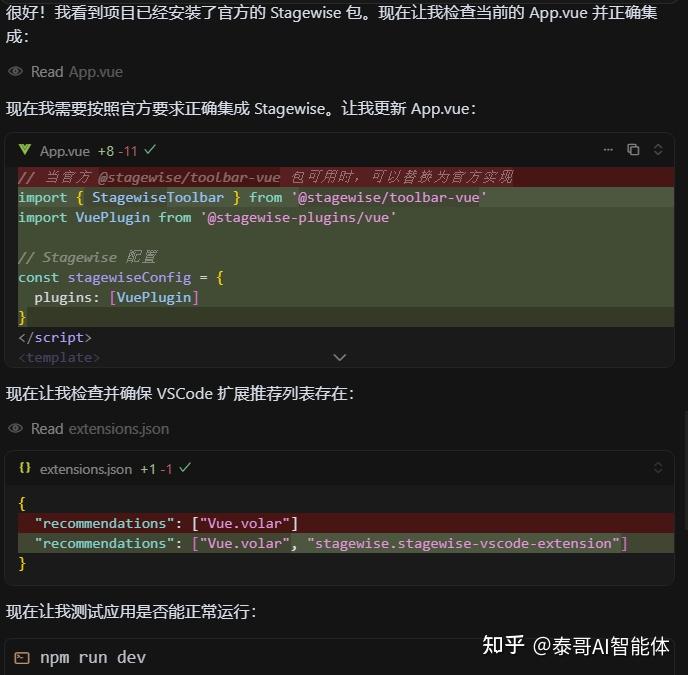
<script setup lang=“ts”> import { StagewiseToolbar } from ’@stagewise/toolbar-vue‘ import VuePlugin from ’@stagewise-plugins/vue‘// Stagewise 配置 const stagewiseConfig = { plugins: [VuePlugin] } </script>
<template> <router-view />
Stagewise 工具栏 - 只在开发模式下显示 –> <StagewiseToolbar :config=“stagewiseConfig” /> </template>

什么样表示安装成功了呢?在浏览器中看到stagewise的小图标就说明安装成功了。

点击图标后:
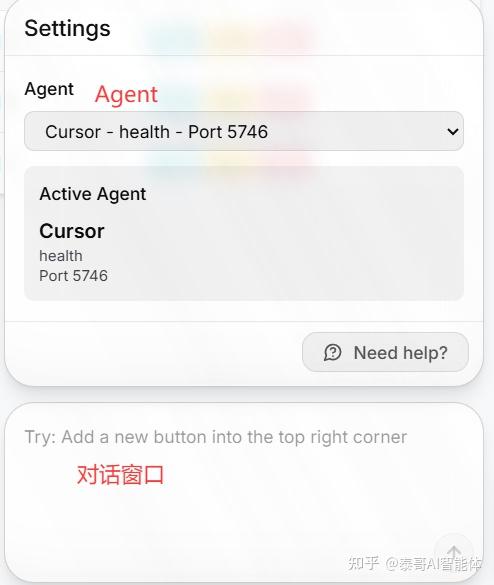
启动开发服务器:npm run dev
访问页面:http://localhost:3000/healthrecord
- 选择元素,可以同时选择多个页面元素,可以修改,可以添加
- 点击发送 “蓝色箭头”
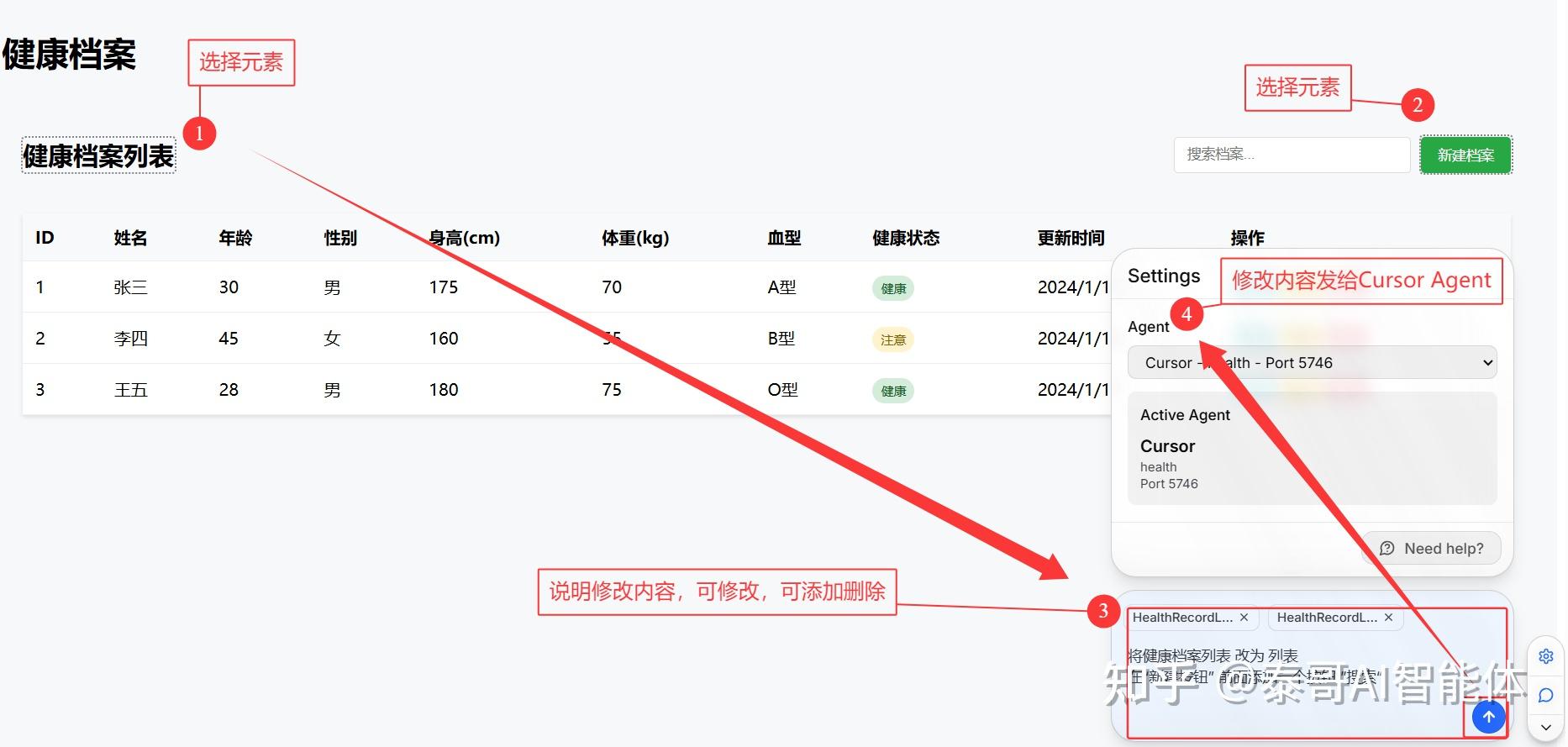
Cursor收到请求,对话框显示出需要修改的提示词
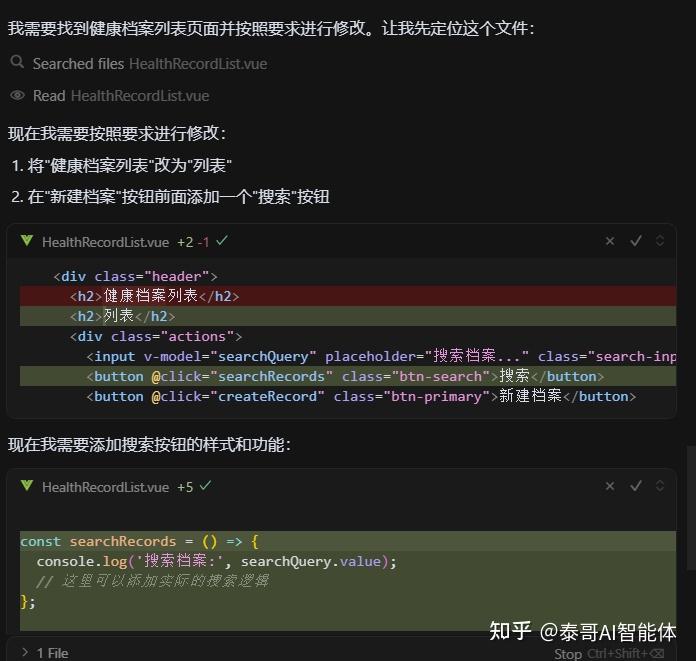
我们看到Cursor根据提示词进行修改。
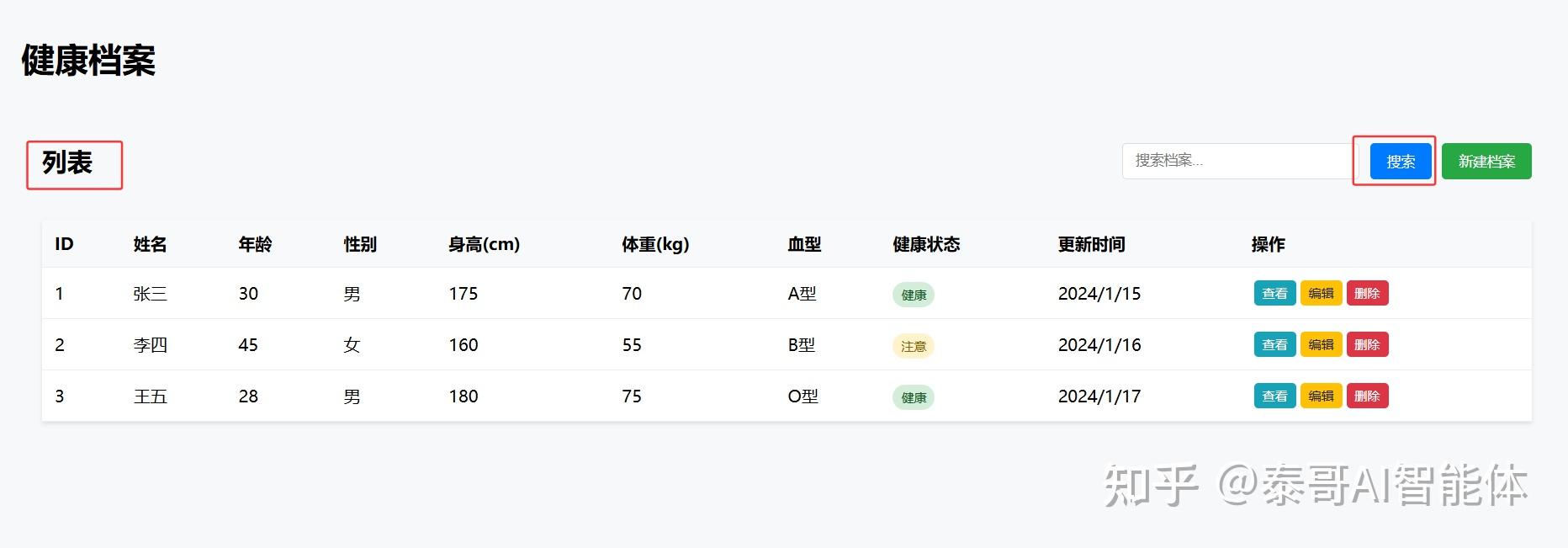
修改正确。
stagewise 是一款面向开发者的高效开发辅助工具,主要通过代码编辑器扩展与应用内工具栏的结合,提升前端开发中的微调与协作效率,尤其适配 AI 编码工具(如 Cursor、GitHub Copilot 等)。以下是其核心特点与使用要点:
- 编辑器扩展集成
支持主流代码编辑器(Cursor、VS Code、Trae、Windsurf 等),可直接从对应扩展商店安装,快速接入开发环境。 - 开发工具栏注入
通过安装@stagewise/toolbar包,可在应用开发模式中注入轻量工具栏,默认显示在 Web 应用右下角,提供便捷的开发辅助功能(具体功能可通过配置扩展)。 - 框架与 AI 工具适配
- 提供框架专属集成包(如 React、Next.js、Vue、SvelteKit 等),简化不同技术栈的接入流程。
- 全面支持主流 AI 编码助手(Cursor、GitHub Copilot、Windsurf 等),强化 AI 辅助开发体验。
- 从编辑器扩展商店安装 Stagewise 扩展;
- 通过 AI 辅助设置(推荐)或手动安装依赖并注入工具栏代码,完成初始化(仅在开发模式生效);
- 启动应用开发模式,工具栏自动连接扩展并生效。
- 轻量化集成:无需复杂配置,支持一键初始化,适配多种开发框架。
- AI 协作强化:与主流 AI 编码工具深度兼容,提升代码微调与开发效率。
- 场景化辅助:聚焦前端开发场景,通过工具栏简化日常调试与功能配置流程。
版权声明:本文内容由互联网用户自发贡献,该文观点仅代表作者本人。本站仅提供信息存储空间服务,不拥有所有权,不承担相关法律责任。如发现本站有涉嫌侵权/违法违规的内容,请联系我们,一经查实,本站将立刻删除。
如需转载请保留出处:https://51itzy.com/kjqy/220418.html